

In this guide, you’ll build an AI-powered Slack Bot that answers user questions right inside Slack. If you haven’t developed a plugin before, read the Plugin Development Quick Start Guide first.
Project Background#
A Slack Bot plugin lets your team chat with an LLM directly in Slack, putting AI where conversations already happen.
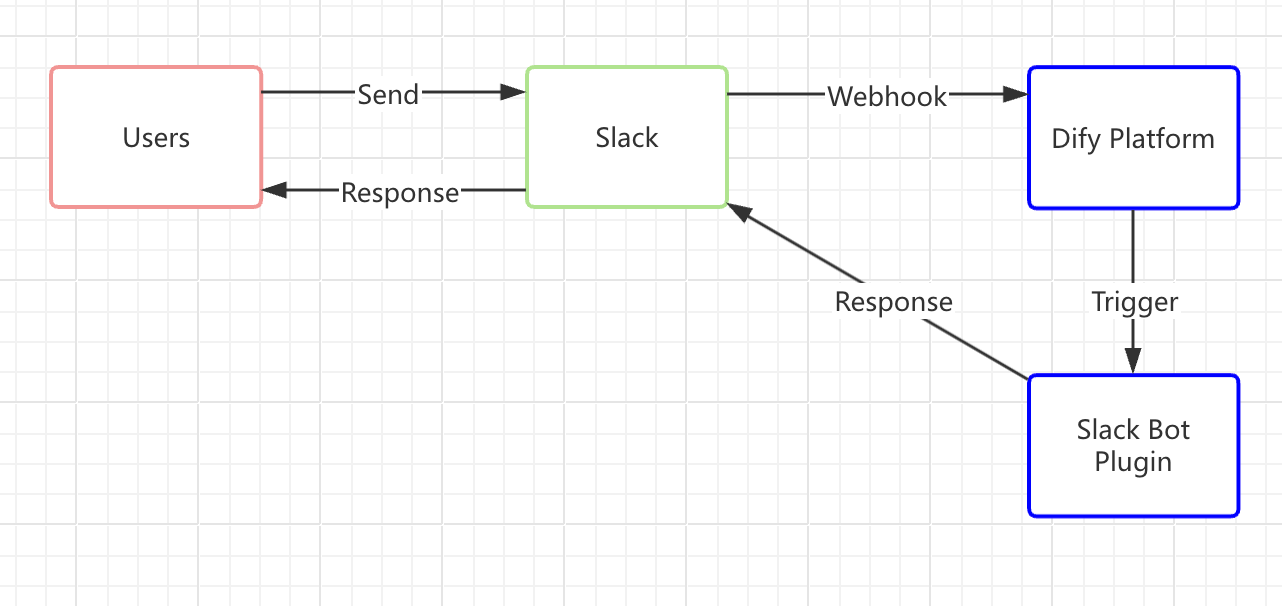
Slack is an open, real-time communication platform with a robust API, including a webhook-based event system that is straightforward to build on. This guide uses that system to create the Slack Bot plugin, illustrated in the diagram below:
Two similar terms appear throughout this guide:
- Slack Bot: A chatbot on the Slack platform—a virtual user you can interact with in real time.
- Slack Bot plugin: A plugin in the Dify Marketplace that connects a Dify application with Slack. This guide shows you how to build it.
How It Works#
-
A user messages the Slack Bot
When a user in Slack sends a message to the Bot, the Slack Bot immediately issues a webhook request to the Dify platform.
-
Slack forwards the message to the Slack Bot plugin
The Dify platform triggers the Slack Bot plugin, which relays the message to the Dify application—much like an email system delivering to a recipient’s address. You establish this connection by setting up a Slack webhook address through Slack’s API and entering it in the plugin. The plugin processes the Slack request and forwards it to the Dify application, where the LLM analyzes the input and generates a response.
-
The plugin returns the response to Slack
Once the plugin receives the reply from the Dify application, it sends the LLM’s answer back along the same route to the Slack Bot, so users get the response right where they’re chatting.
Prerequisites#
- Dify plugin development tool: See Initializing the Development Tool.
- Python environment (version 3.12): See the Python official downloads page.
- A Slack App with an OAuth token: See the steps below.
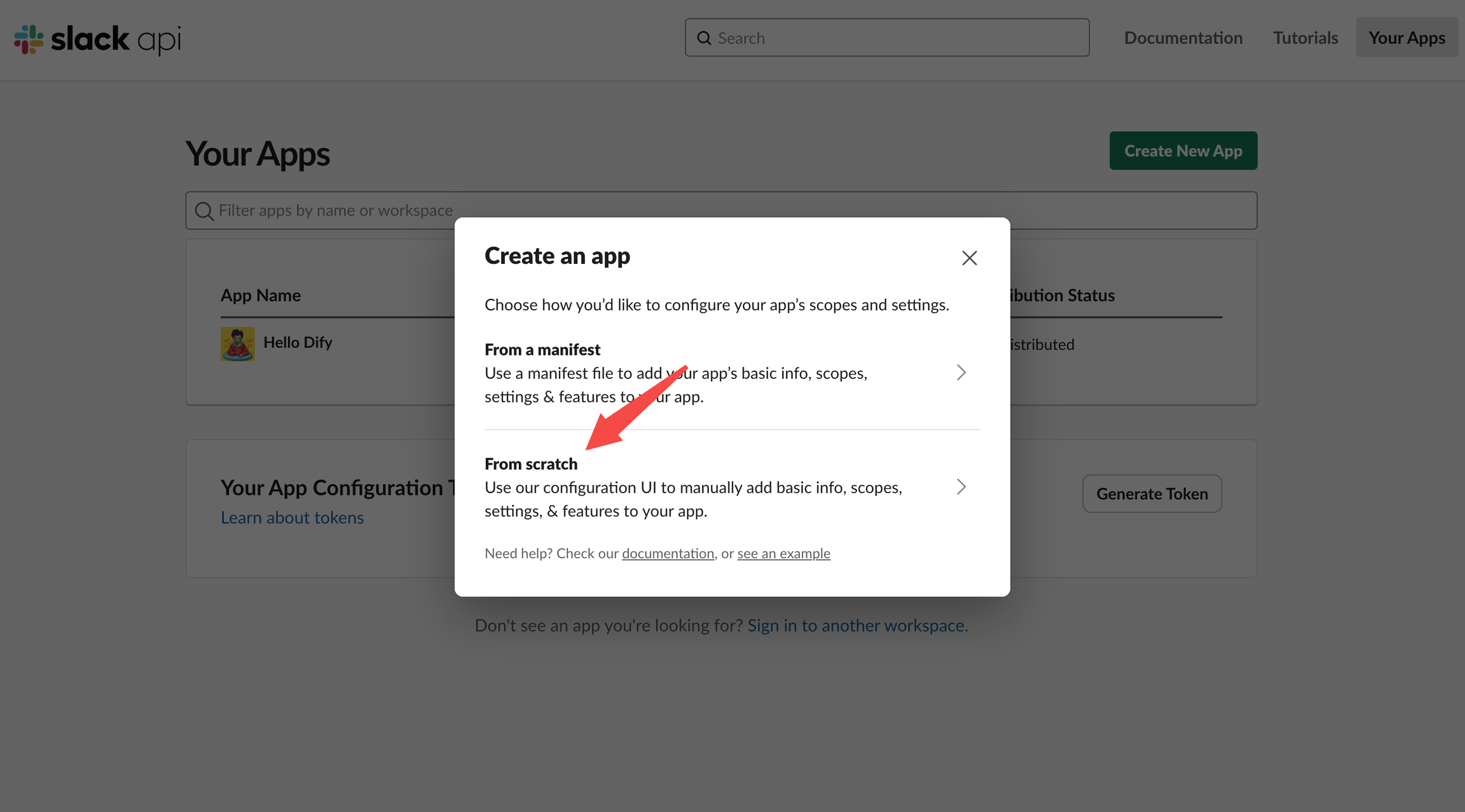
To create the Slack App, go to the Slack API platform, create an app from scratch, and pick the workspace where it will be deployed.
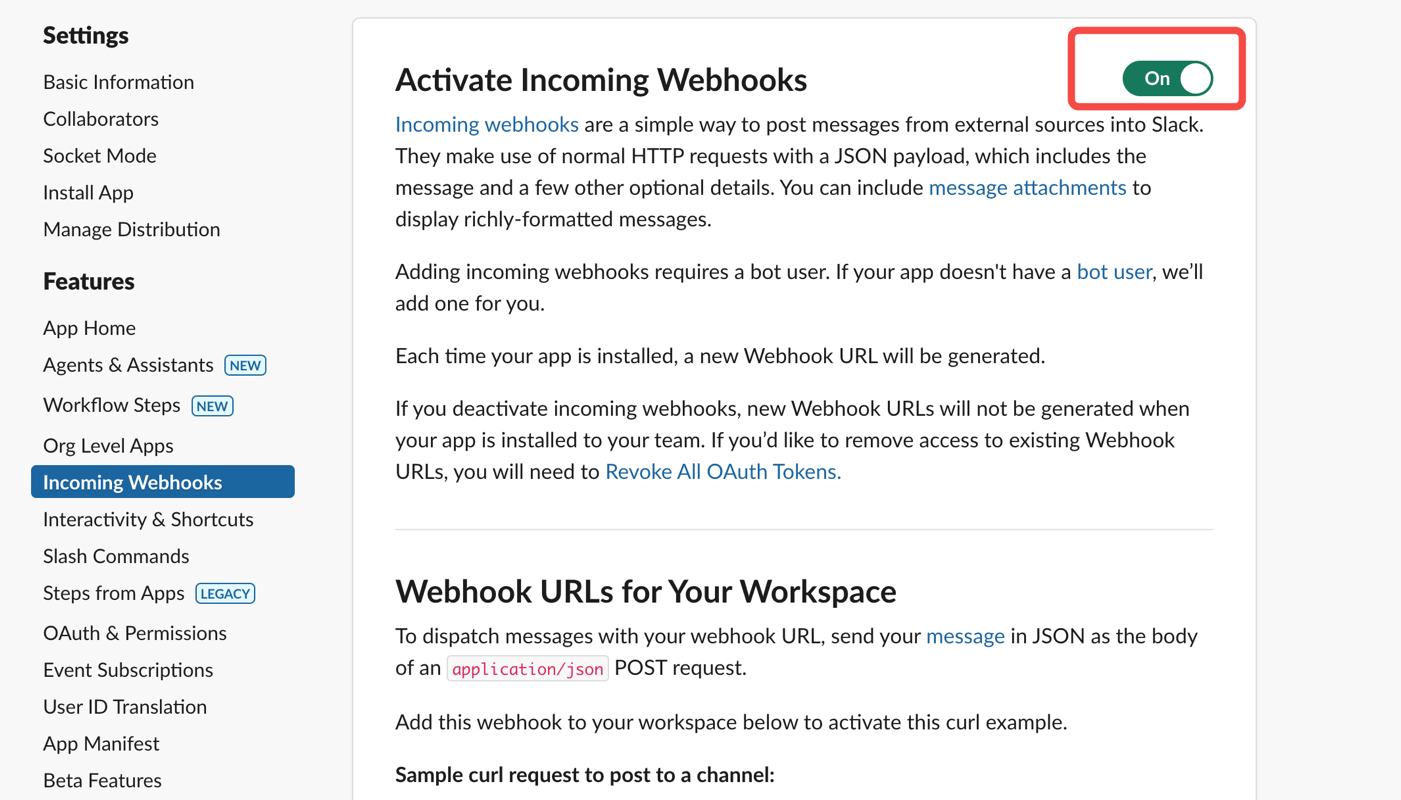
- Enable Webhooks:
- Install the App in Your Slack Workspace:
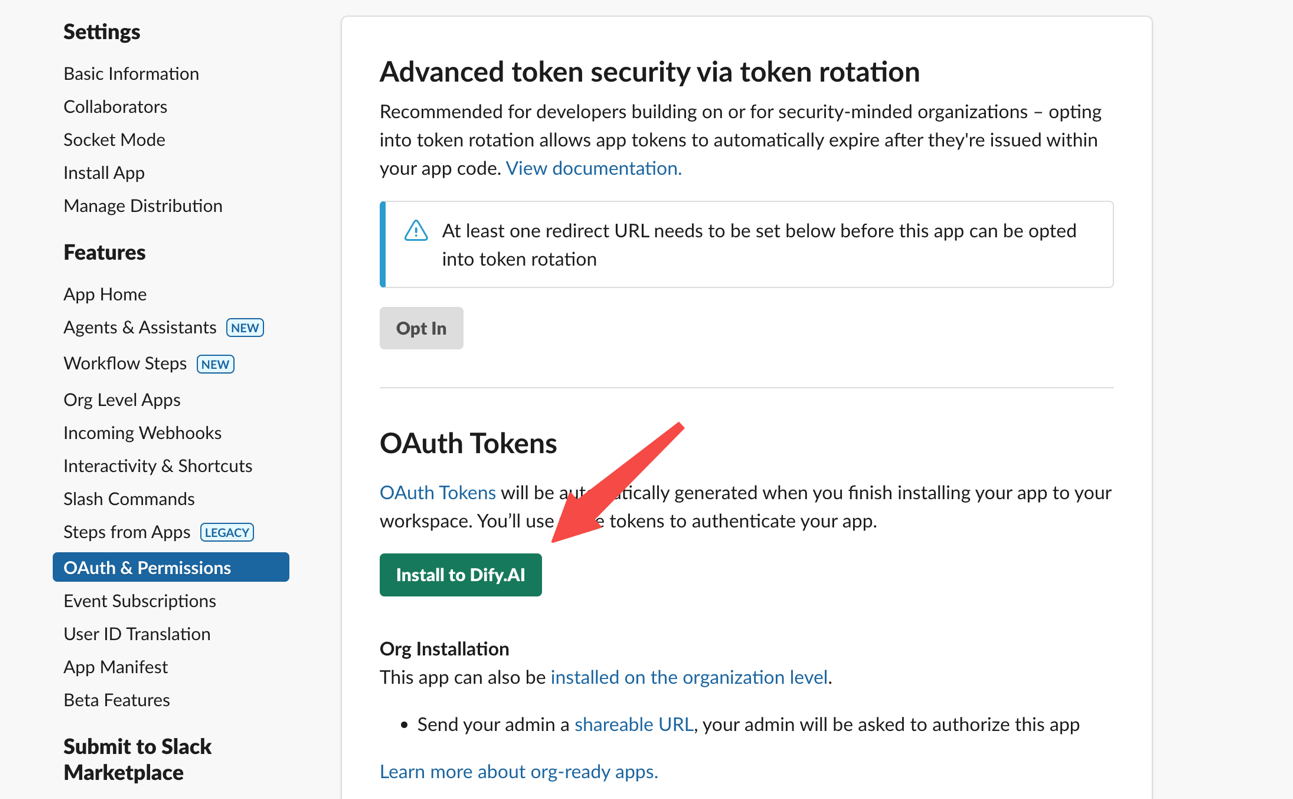
- Obtain an OAuth Token for plugin development:
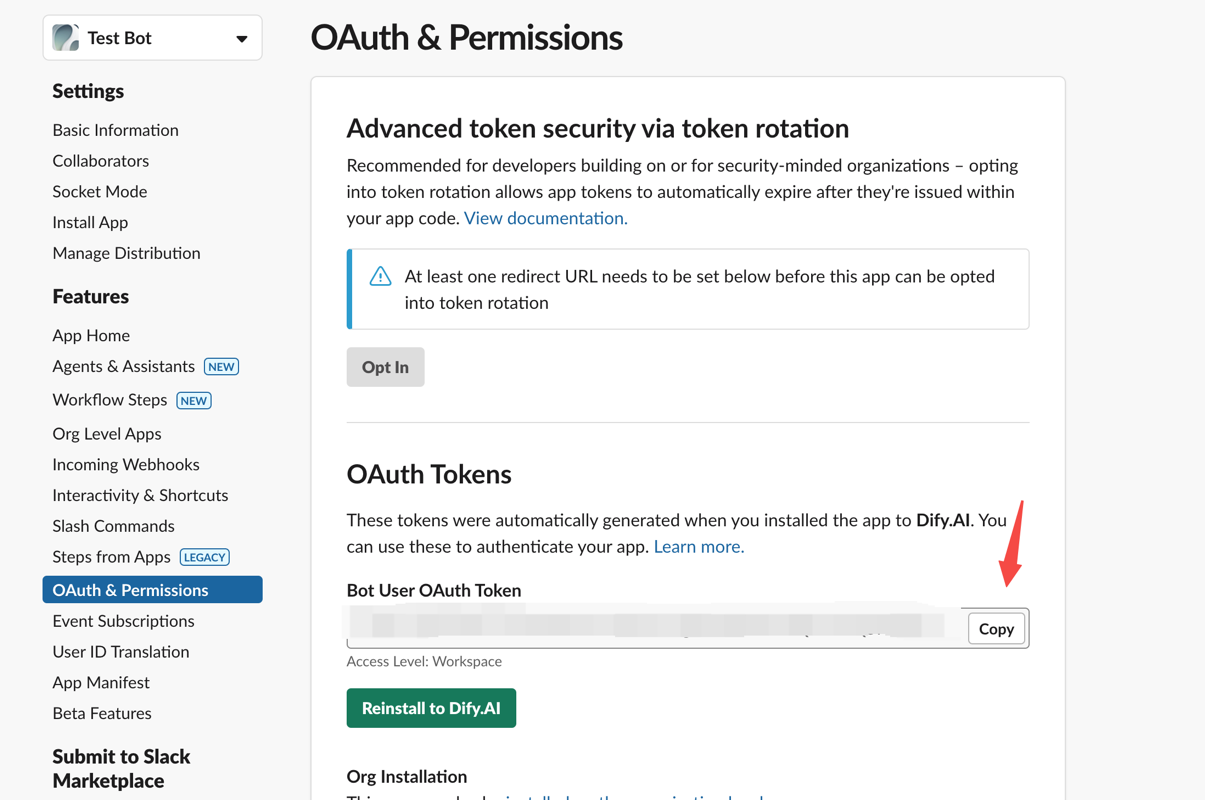
1. Develop the Plugin#
Before you start coding, make sure you’ve read Quick Start: Developing an Extension Plugin or have built a Dify plugin before.
1.1 Initialize the Project#
Run the following command to set up your plugin development environment:
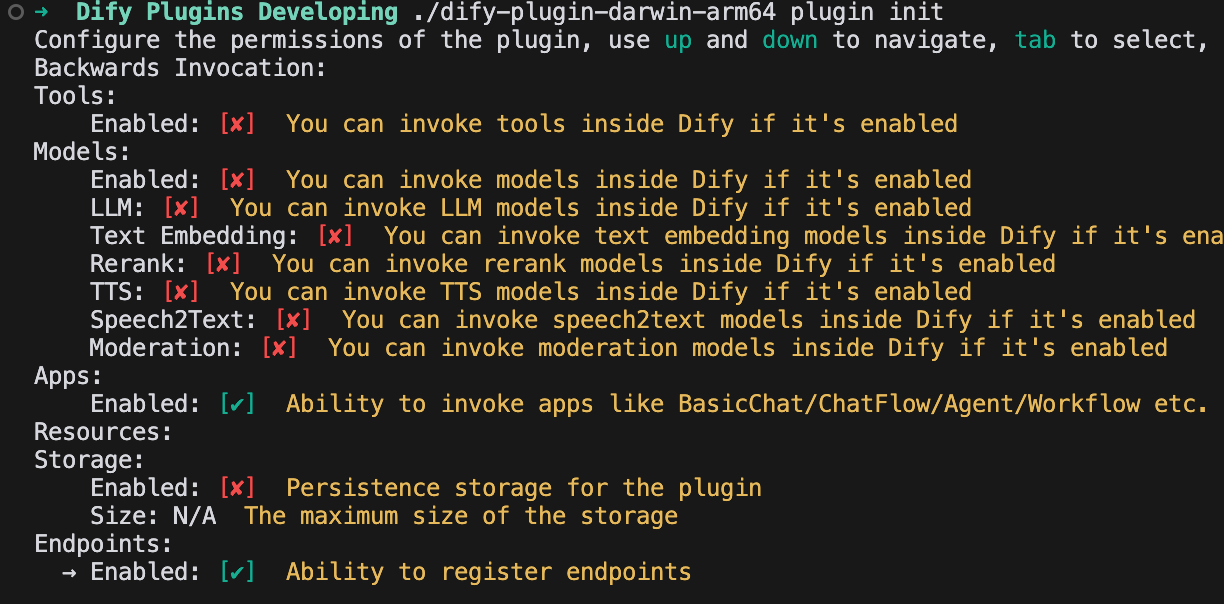
Follow the prompts to provide basic project info. Select the extension template, and grant both Apps and Endpoints permissions.
For additional details on reverse-invoking Dify services within a plugin, see Reverse Invocation: App.
1.2 Edit the Configuration Form#
The plugin needs two pieces of information: which Dify app handles the replies, and the Slack App token that authenticates the bot’s responses. Add both fields to the plugin’s form.
Modify the YAML file in the group directory (for example, group/slack.yaml). The form’s filename comes from the information you provided when creating the plugin, so adjust the path accordingly.
Sample Code:
slack.yaml
Two configuration fields deserve a closer look:
type: Set toapp-selector, which lets users forward messages to a specific Dify app when using this plugin.scope: Set tochat, meaning the plugin can only interact with app types such as agent, chatbot, or Chatflow.
Finally, in the endpoints/slack.yaml file, change the request method to POST so the endpoint can handle incoming Slack messages.
Sample Code:
endpoints/slack.yaml
2. Edit the Function Code#
Modify the endpoints/slack.py file and add the following code:
3. Debug the Plugin#
Go to the Dify platform and obtain the remote debugging address and key for your plugin.
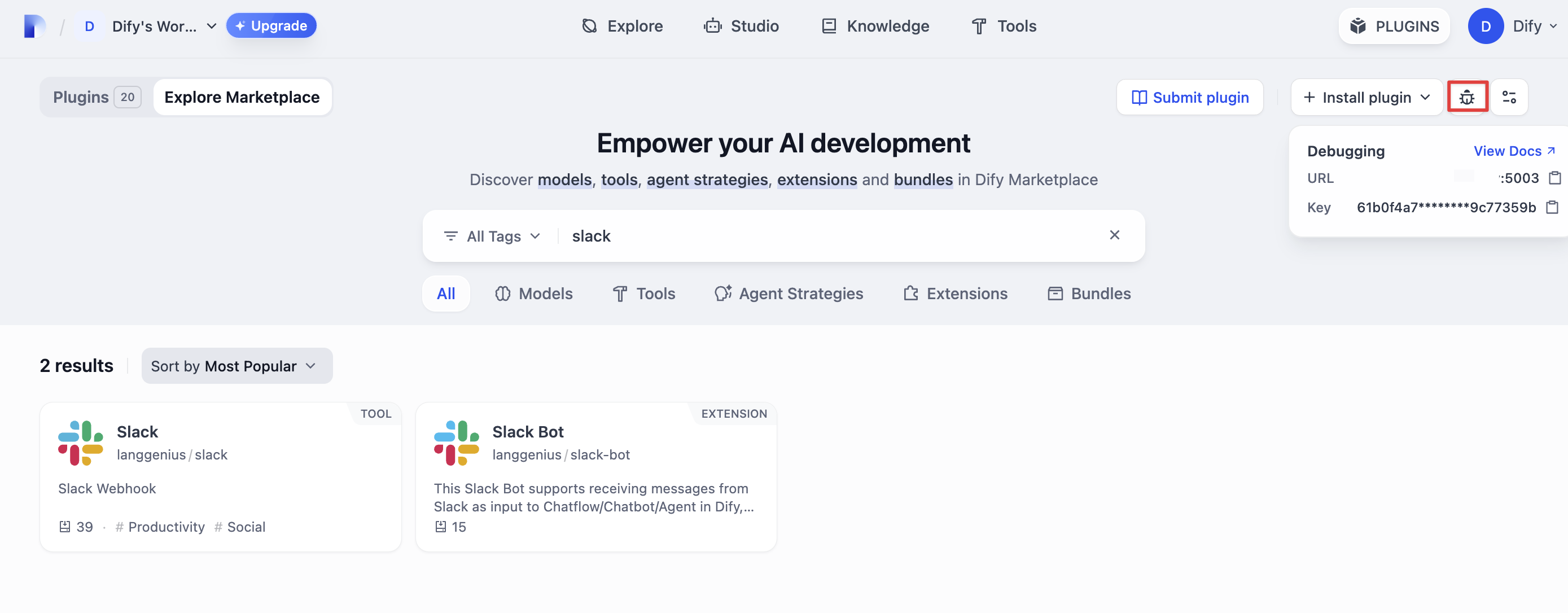
Back in your plugin project, copy the .env.example file, rename it to .env, and fill in the debugging details:
Start the plugin:
You should now see the plugin installed in your Workspace on Dify’s plugin management page, where other team members can also access it.
Configure the Plugin Endpoint#
On Dify’s plugin management page, locate the newly installed test plugin and create a new endpoint. Enter a name and your Bot Token, then select the app you want to connect.
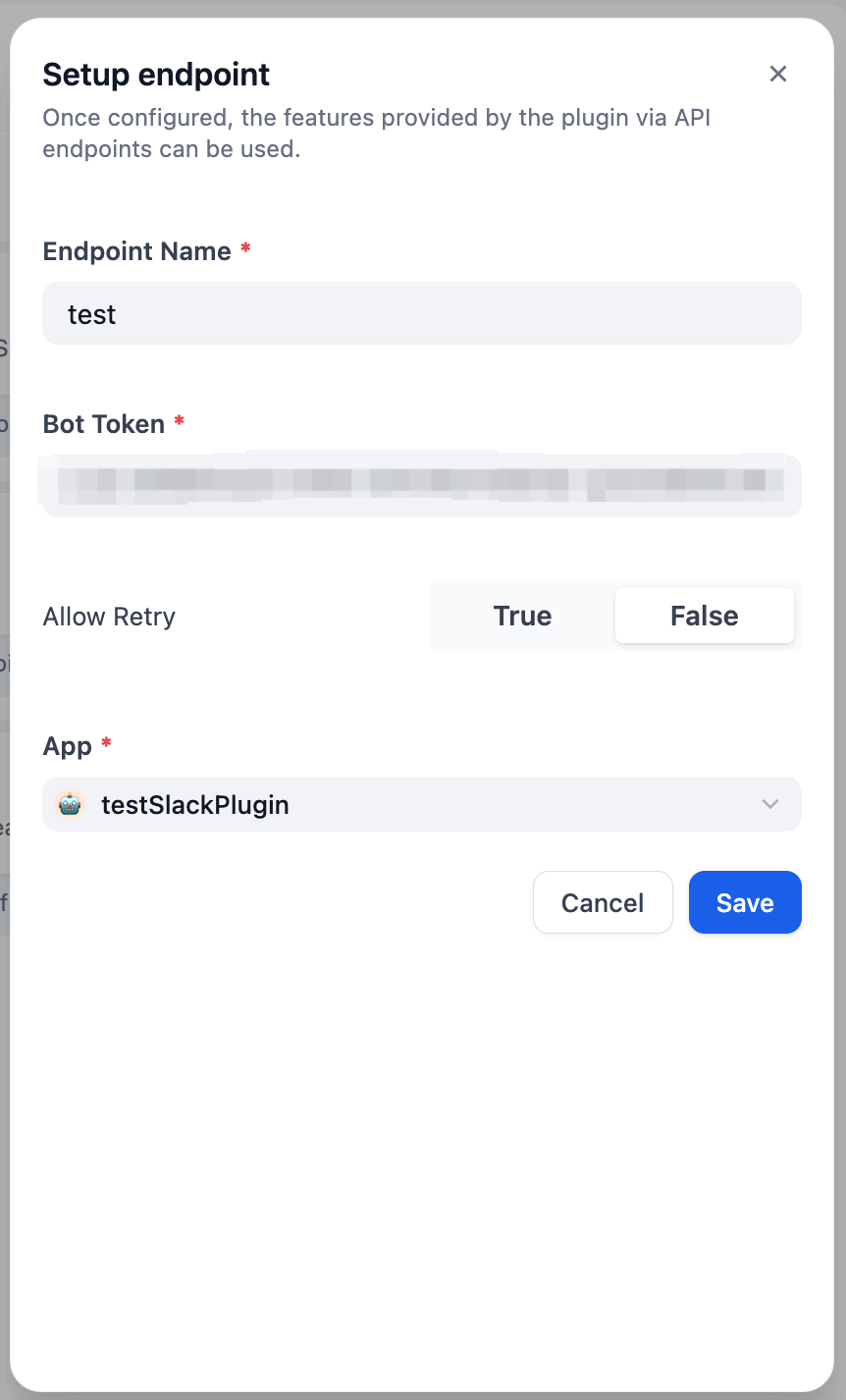
After saving, a POST request URL is generated:
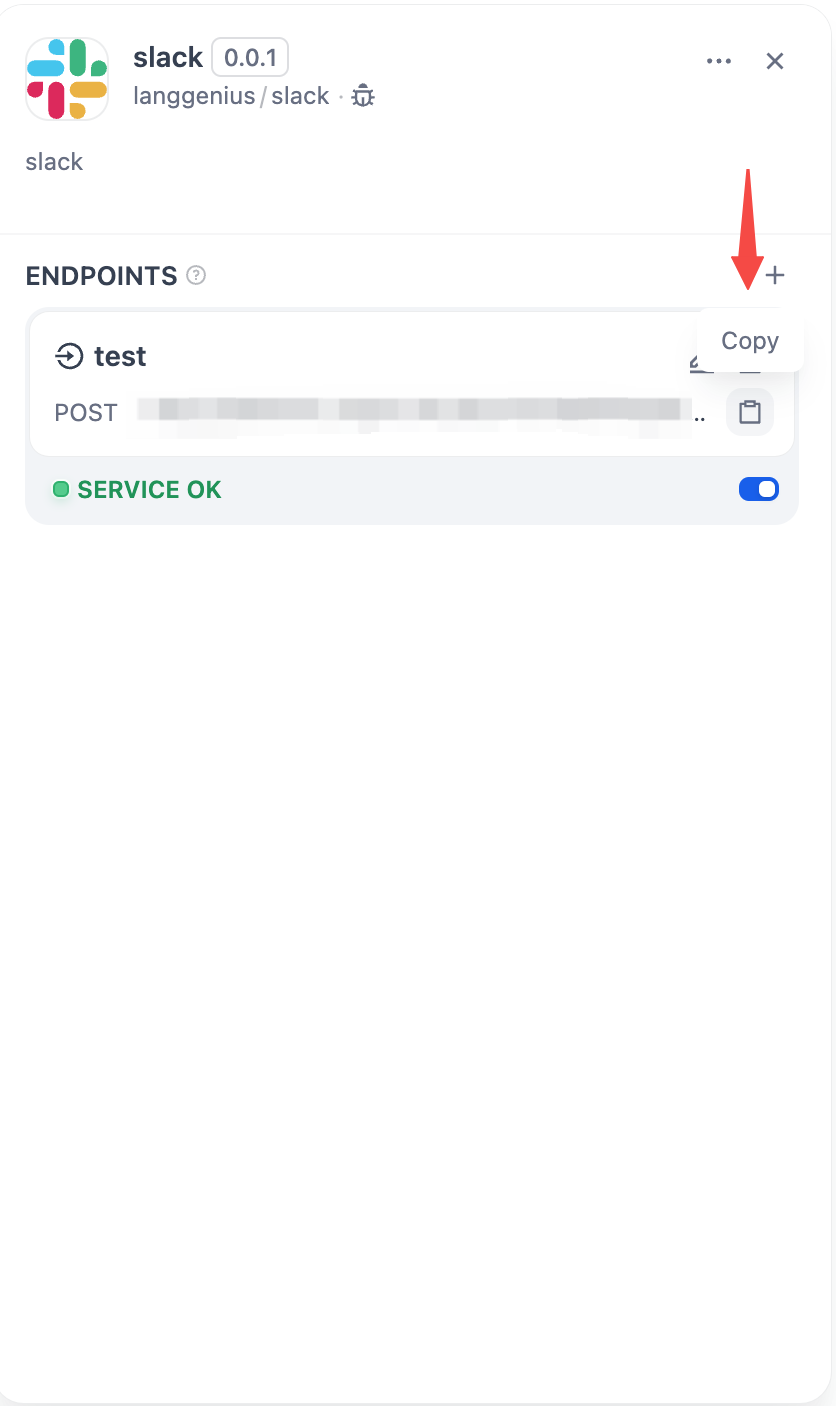
Next, complete the Slack App setup:
-
Enable Event Subscriptions
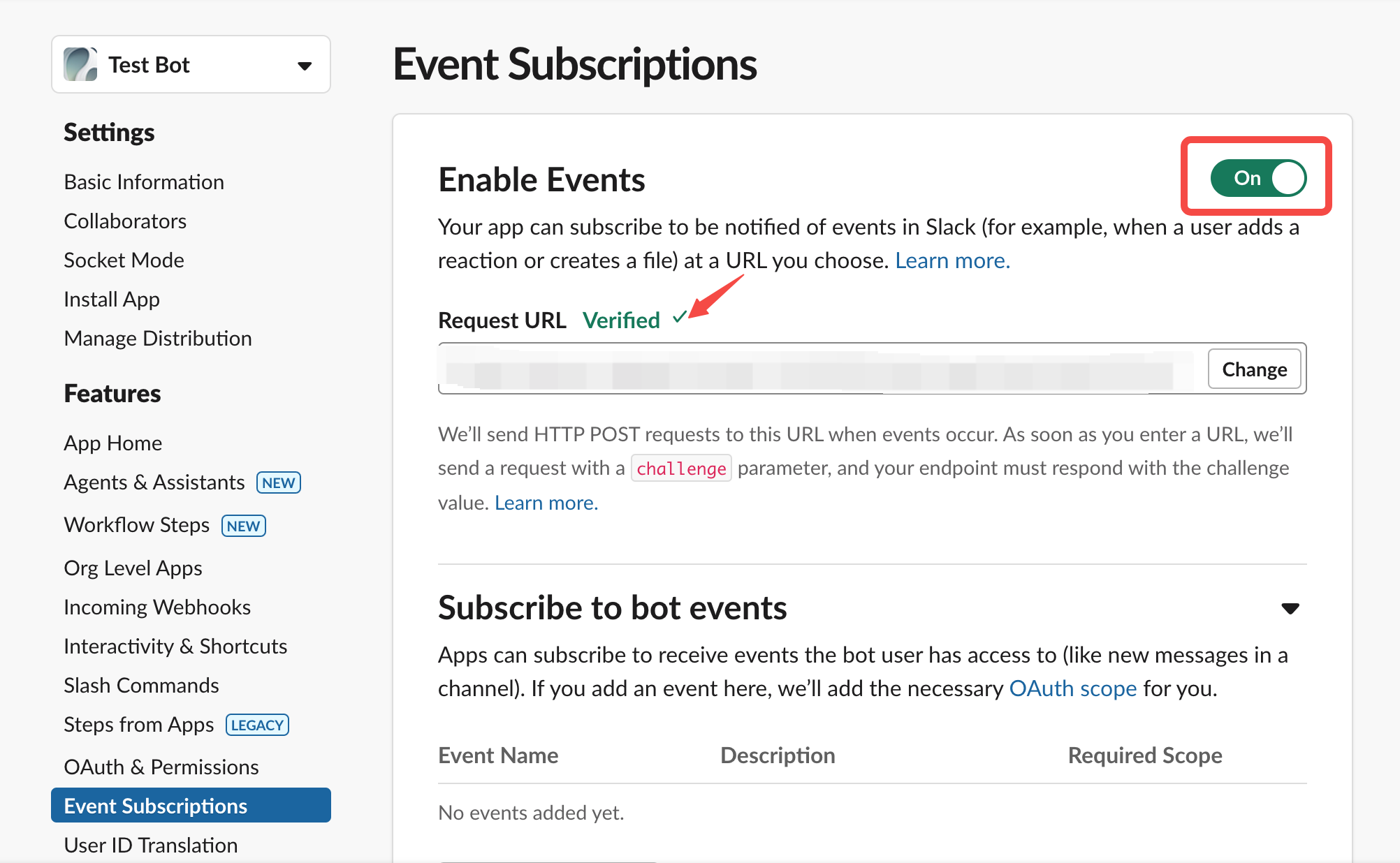
Paste the POST request URL you generated above.
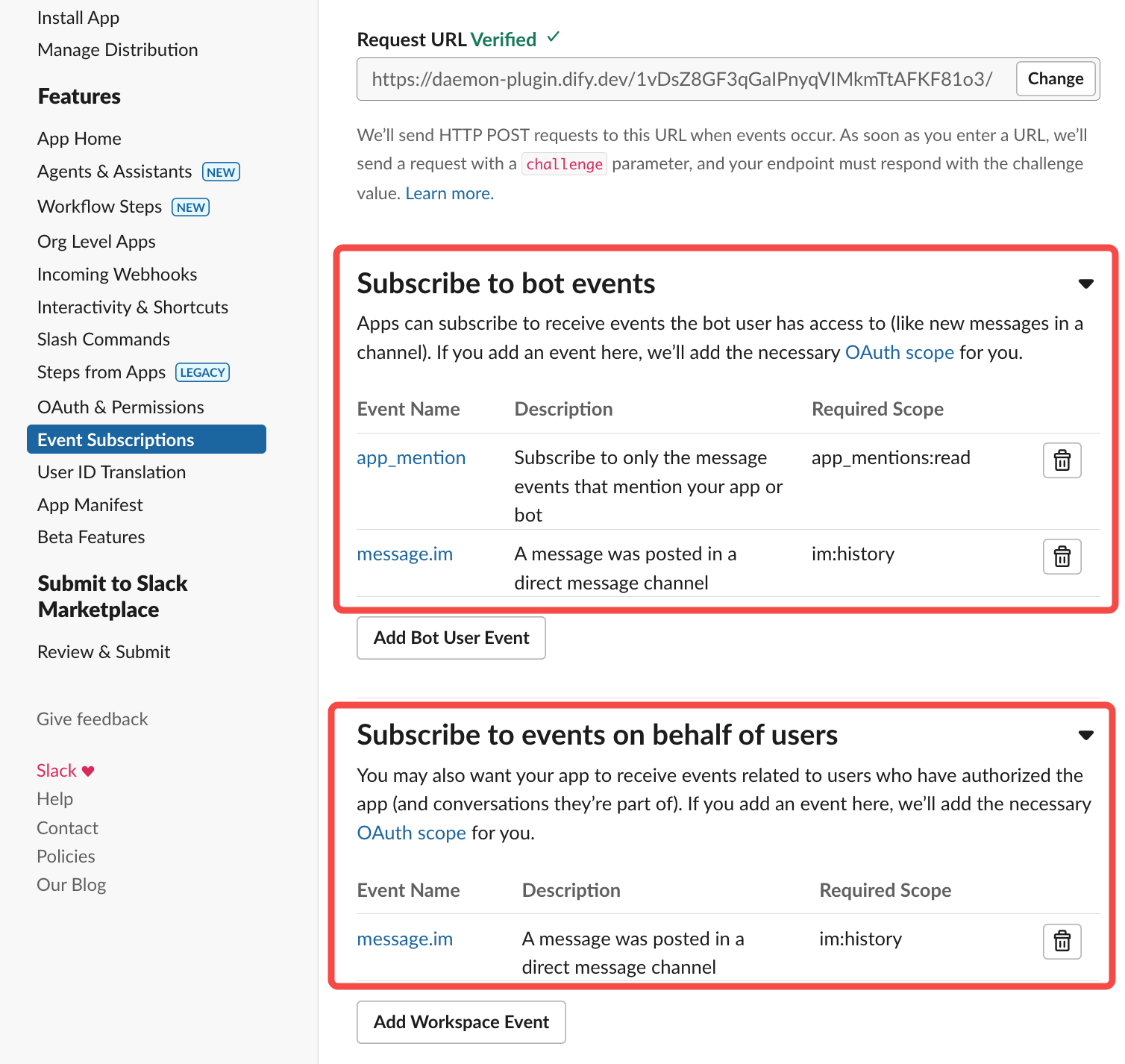
-
Grant Required Permissions
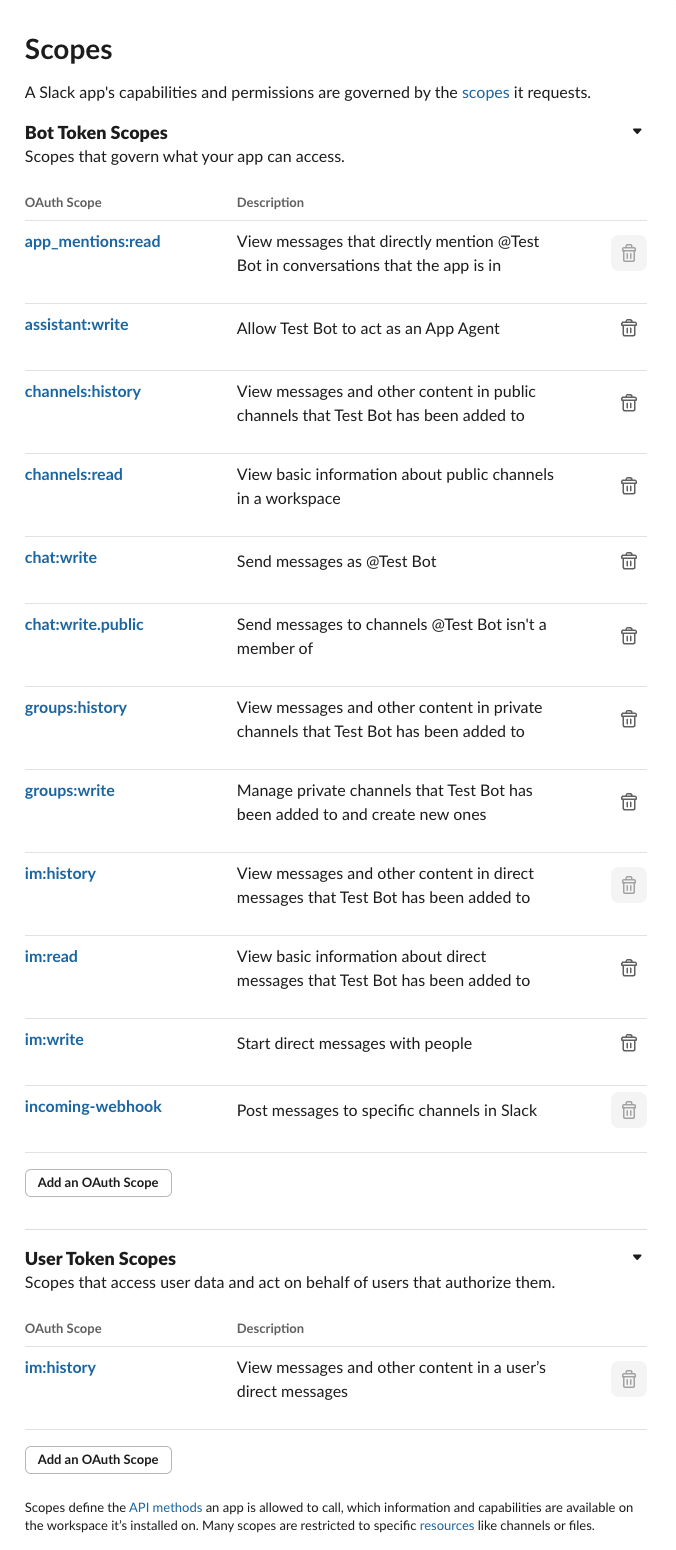
4. Verify the Plugin#
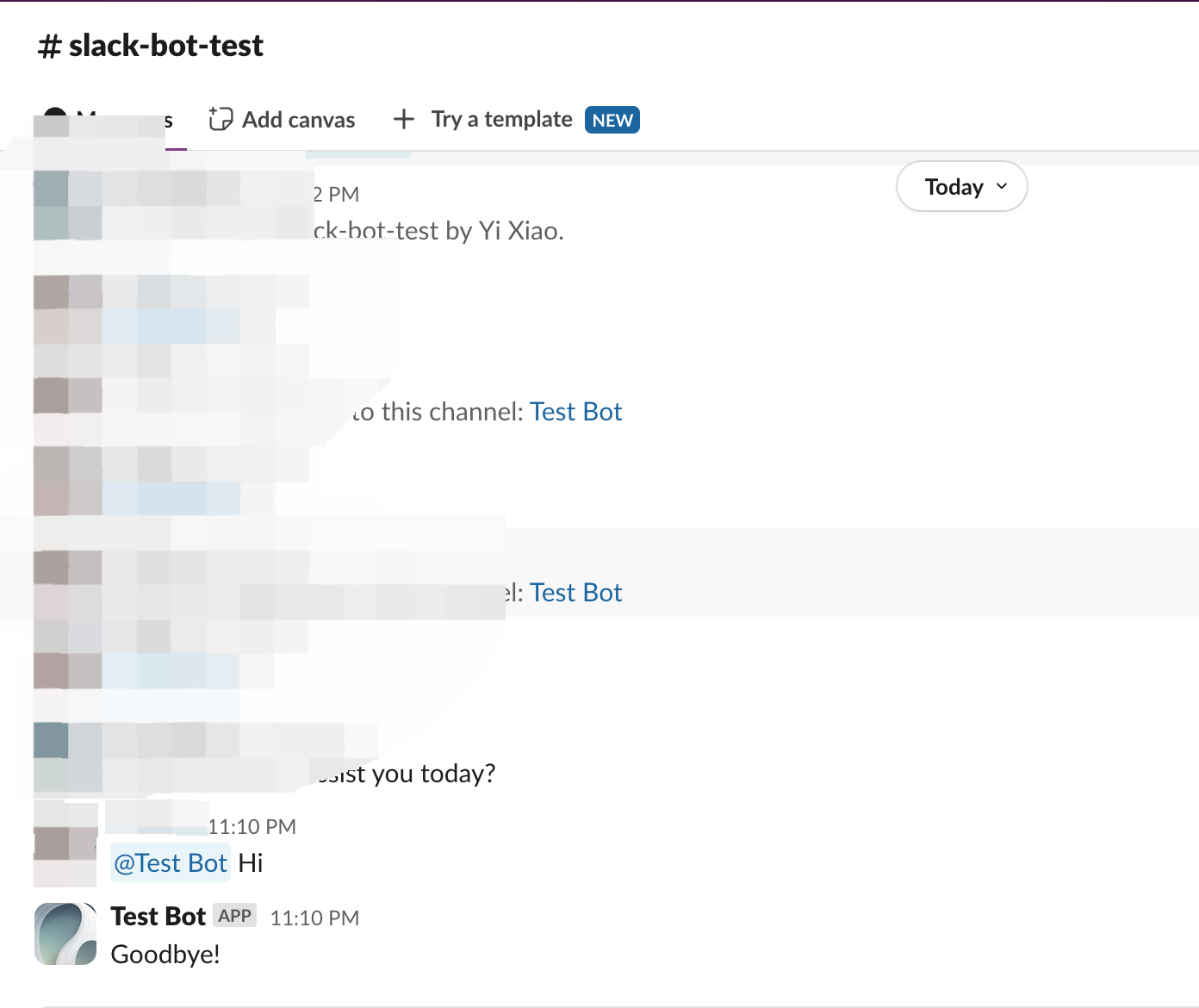
The plugin calls the Dify application through self.session.app.chat.invoke, passing in parameters such as app_id and query, and returns the response to the Slack Bot. Run python -m main again to restart the plugin, then check that Slack displays the Dify app’s reply:
5. Package the Plugin (Optional)#
Once you confirm the plugin works correctly, package it with the following command. The command produces a slack_bot.difypkg file in the current directory—your final plugin package. For detailed packaging steps, see Package as a Local File and Share.
Congratulations—you’ve developed, tested, and packaged a plugin!
6. Publish the Plugin (Optional)#
You can now submit it to the Dify Marketplace repository for public release. Before publishing, ensure your plugin meets the Marketplace preparation and validation requirements. Once approved, the package is merged into the main branch and released through the Marketplace pipeline.
Related Resources#
- Plugin Development Basics: Comprehensive overview of Dify plugin development
- Plugin Development Quick Start Guide: Start developing plugins from scratch
- Develop an Extension Plugin: Extension plugin development
- Reverse Invocation of Dify Services: How to call Dify platform capabilities
- Reverse Invocation: App: How to call apps within the platform
- Publishing Plugins: The publishing process
- Publish a Plugin to Marketplace: Package preparation, validation, and submission guide
- Endpoint Detailed Definition: Endpoint reference
Further Reading#
For a complete Dify plugin project example, visit the GitHub repository. You’ll also find additional plugins with full source code and implementation details.
To explore more about plugin development, see the following:
Quick Starts:
Plugin Interface Docs:
- Defining Plugin Information via Manifest File: Manifest structure
- Endpoint: Endpoint reference
- Reverse Invocation: Calling Dify capabilities from a plugin
- General Specifications: Tool specifications
- Model Schema: Model schema reference