

The real value of Dify lies in how easily you can build, deploy, and scale an idea no matter how complex. It’s built for fast prototyping, smooth iteration, and reliable deployment at any level.
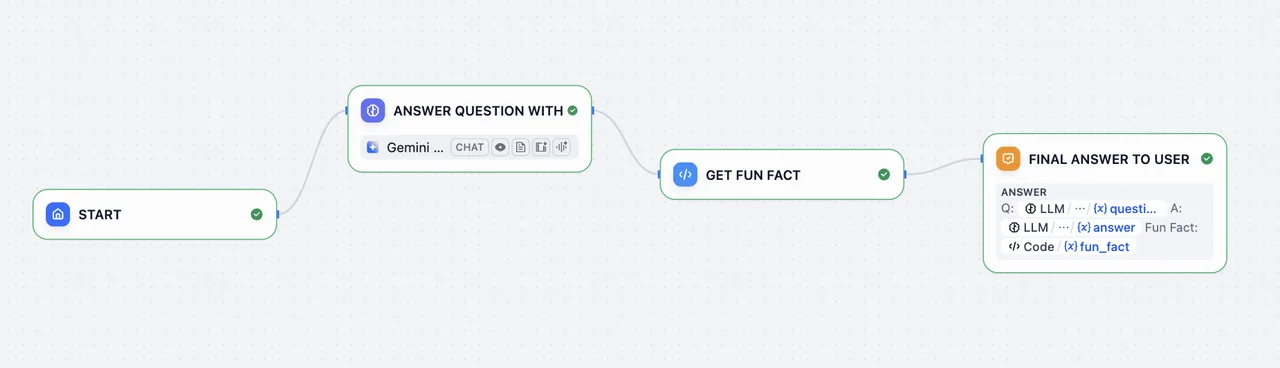
Let’s start by learning reliable LLM integration into your applications. In this guide, you’ll build a simple chatbot that classifies the user’s question, respond directly using the LLM, and enhance the response with a country-specific fun fact.
Step 1: Create a New Workflow (2 min)#
- Go to Studio > Workflow > Create from Blank > Orchestrate > New Chatflow > Create
Step 2: Add Workflow Nodes (6 min)#
When you want to reference any variable, type { or / first and you can see the different variables available in your workflow.
1. LLM Node and Output: Understand and Answer the Question#
LLM node sends a prompt to a language model to generate a response based on user input. It abstracts away the complexity of API calls, rate limits, and infrastructure, so you can just focus on designing logic.
Create LLM Node
Create an LLM node using the Add Node button and connect it to your Start node
Configure Model
Choose a default model
Set System Prompt
Paste this into the System Prompt field:
Enable Structured Output
Enable Structured Output allows you to easily control what the LLM will return and ensure consistent, machine-readable outputs for downstream use in precise data extraction or conditional logic.
- Toggle Output Variables Structured ON >
Configureand clickImport from JSON - Paste:
2. Code Block: Get Fun Fact#
Code node executes custom logic using code. It lets you inject code exactly where needed—within a visual workflow—saving you from wiring up an entire backend.
Create Code Node
Create a Code Node using the Add Node button and connect to LLM block
Configure Input Variable
Change one Input Variable name to “country” and set the variable to structured_output > country
Add Python Code
Paste this code into PYTHON3:
Rename Output Variable
Change output variable result to fun_fact to have a better labeled variable
3. Answer Node: Final Answer to User#
Answer Node creates a clean final output to return.
Create Answer Node
Create an Answer Node using the Add Node button
Configure Answer Field
Paste into the Answer Field:
End Workflow:
Step 3: Test the Bot (3 min)#
Click Preview, then ask:
- “What is the capital of France?”
- “Tell me about Japanese cuisine”
- “Describe the culture in Italy”
- Any other questions
Make sure your Bot works as expected!
You’ve Completed the Bot!#
This guide showed how to integrate language models reliably and scalably without reinventing infrastructure. With Dify’s visual workflows and modular nodes, you’re not just building faster, you’re adopting a clean, production-ready architecture for LLM-powered apps.