

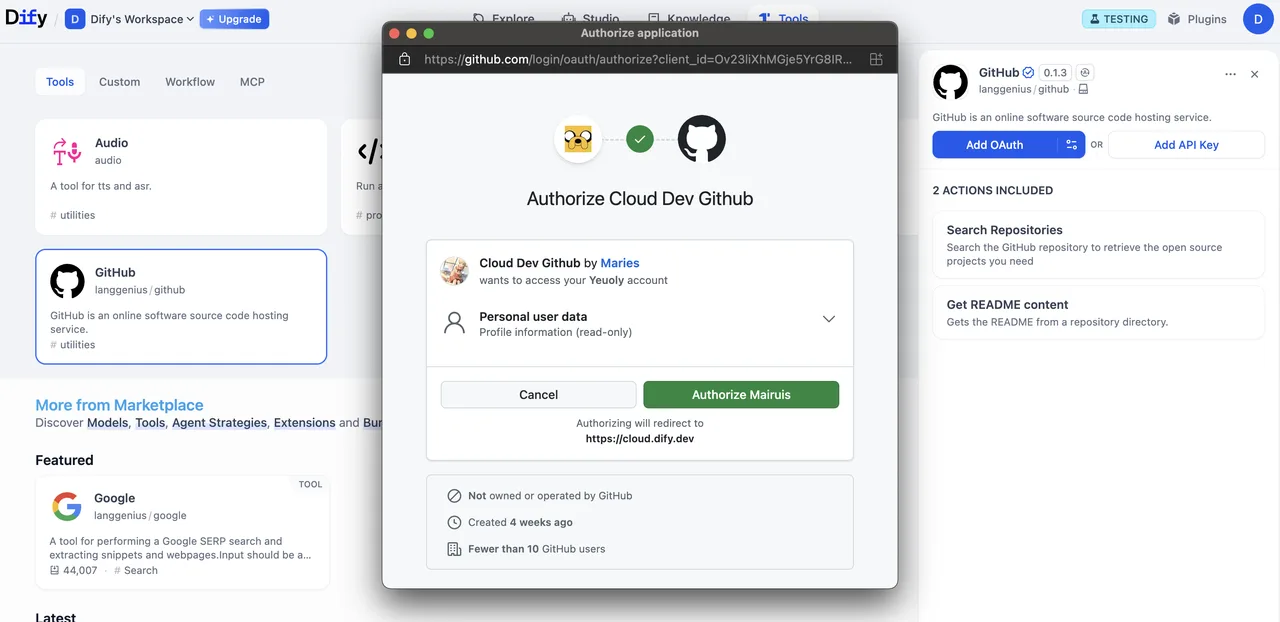
This guide teaches you how to build OAuth support into your tool plugin.
OAuth is a better way to authorize tool plugins that need to access user data from third-party services, like Gmail or GitHub. Instead of requiring the user to manually enter API keys, OAuth lets the tool act on behalf of the user with their explicit consent.
Background#
OAuth in Dify involves two separate flows that developers should understand and design for.
Flow 1: OAuth Client Setup (Admin / Developer Flow)#
On Dify Cloud, the Dify team creates OAuth apps for popular tool plugins and sets up OAuth clients, so users don’t need to configure this themselves.
Admins of self-hosted Dify instances must go through this setup flow.
Admins or developers of a Dify instance first register an OAuth app with the third-party service as a trusted application. This provides the credentials needed to configure the Dify tool provider as an OAuth client.
As an example, here are the steps to set up an OAuth client for Dify’s Gmail tool provider:
Create a Google Cloud Project
- Go to Google Cloud Console and create a new project, or select an existing one.
- Enable the required APIs (e.g., Gmail API).
Configure the OAuth Consent Screen
- Navigate to APIs & Services > OAuth consent screen.
- Choose the External user type for public plugins.
- Fill in the application name, user support email, and developer contact.
- Add authorized domains if needed.
- For testing, add test users in the Test users section.
Create OAuth 2.0 Credentials
- Go to APIs & Services > Credentials.
- Click Create Credentials > OAuth 2.0 Client IDs.
- Choose the Web application type.
- A
client_idand aclient_secretwill be generated. Save these as the credentials.
Enter Credentials in Dify
Enter the client_id and client_secret in the OAuth Client configuration popup to set up the tool provider as a client.
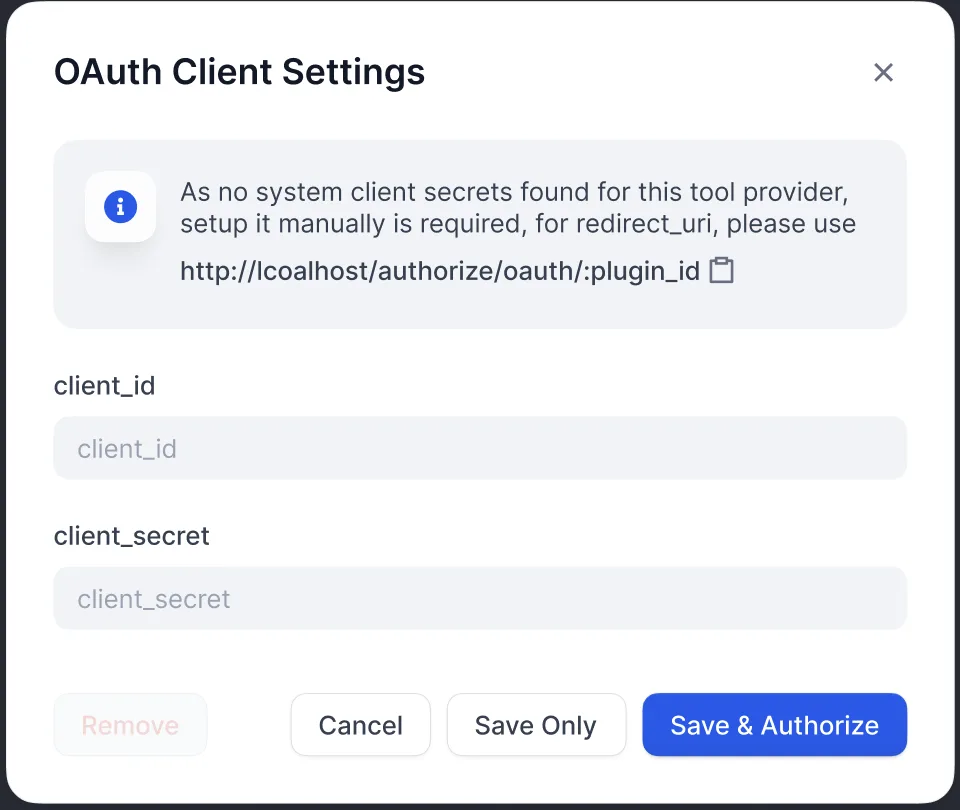
Authorize Redirect URI
Register the redirect URI generated by Dify on the Google OAuth Client’s page:
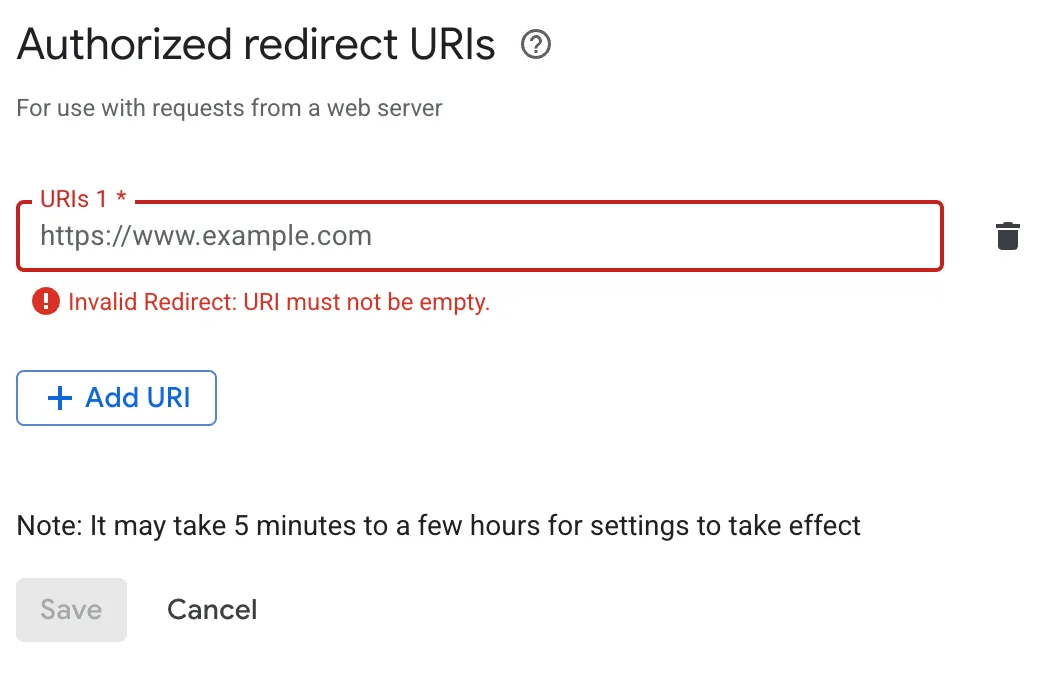
Dify displays the redirect_uri in the OAuth Client configuration popup. It usually follows the format:
For self-hosted Dify, your-dify-domain should match CONSOLE_WEB_URL.
Each service has unique requirements, so always consult the specific OAuth documentation for the services you’re integrating with.
Flow 2: User Authorization (Dify User Flow)#
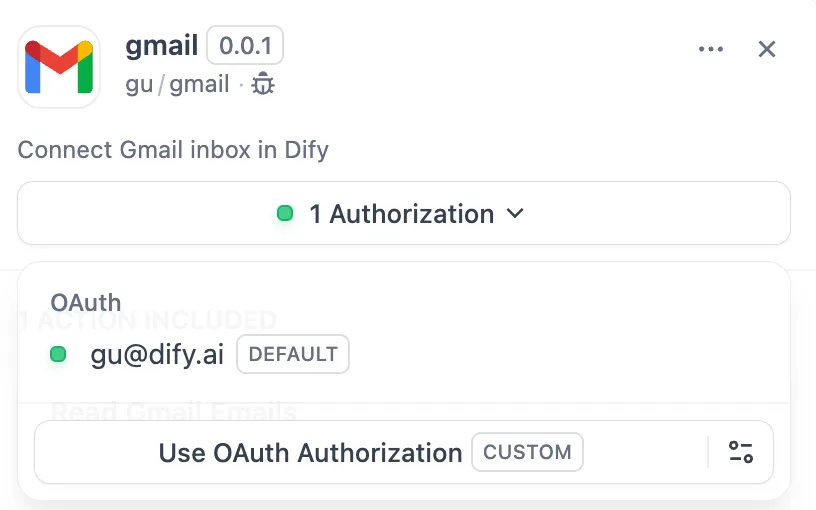
After configuring OAuth clients, individual Dify users can now authorize your plugin to access their personal accounts.
Implementation#
1. Define OAuth Schema in Provider Manifest#
The oauth_schema section of the provider manifest tells Dify what credentials your plugin’s OAuth setup needs and what the OAuth flow produces. Setting up OAuth requires two schemas:
client_schema#
Defines the input for OAuth client setup:
The url field links to the third-party service’s help documentation, giving admins and developers a reference during setup.
credentials_schema#
Specifies what the user authorization flow produces (Dify manages these automatically):
Include oauth_schema and credentials_for_provider together to offer both OAuth and API key authentication options.
2. Complete Required OAuth Methods in Tool Provider#
Add these imports where your ToolProvider is implemented:
Your ToolProvider class must implement these three OAuth methods (using GmailProvider as an example):
Never return the client_secret in the credentials of ToolOAuthCredentials; doing so could lead to security issues.
3. Access Tokens in Your Tools#
Use OAuth credentials to make authenticated API calls in your Tool implementation:
self.runtime.credentials automatically provides the current user’s tokens. Dify handles refresh automatically.
For plugins that support both OAuth and API_KEY authentication, use self.runtime.credential_type to differentiate between the two authentication types.
4. Specify the Correct Versions#
OAuth requires a recent SDK and Dify version. Pin the plugin SDK in requirements.txt:
In manifest.yaml, add the minimum Dify version: