

Track changes and manage versions in Chatflow and Workflow apps.
Only available for Chatflow and Workflow apps right now.
How it works#
Current Draft: Your working version. This is where you make changes. Not live for users.

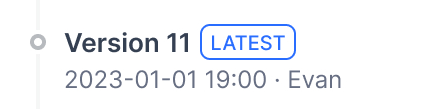
Latest Version: The live version users see.
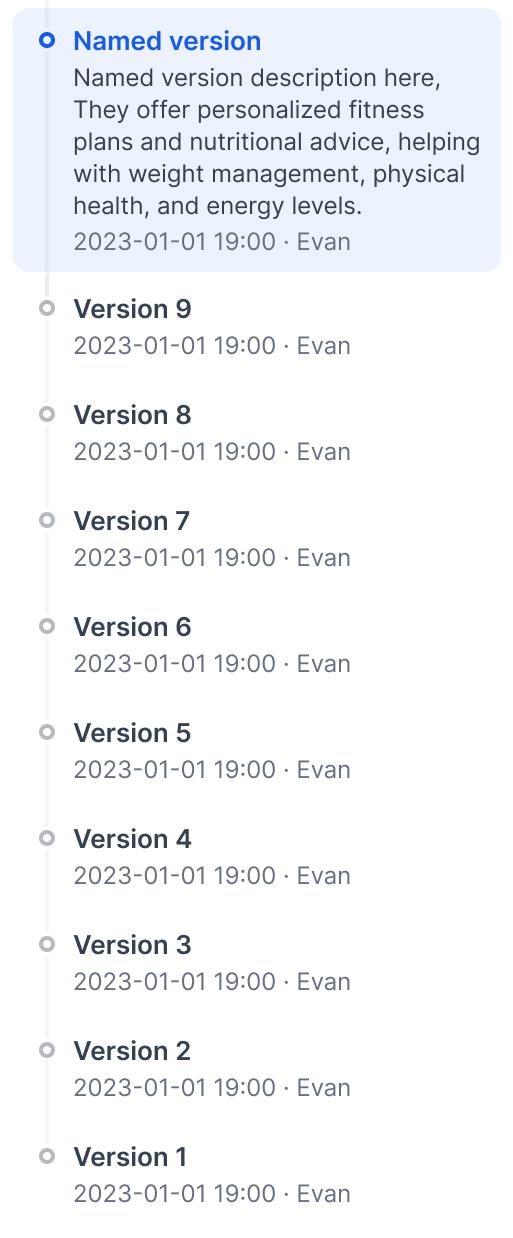
Previous Versions: Older published versions.
Publish versions#
Click Publish → Publish Update to make your draft live.
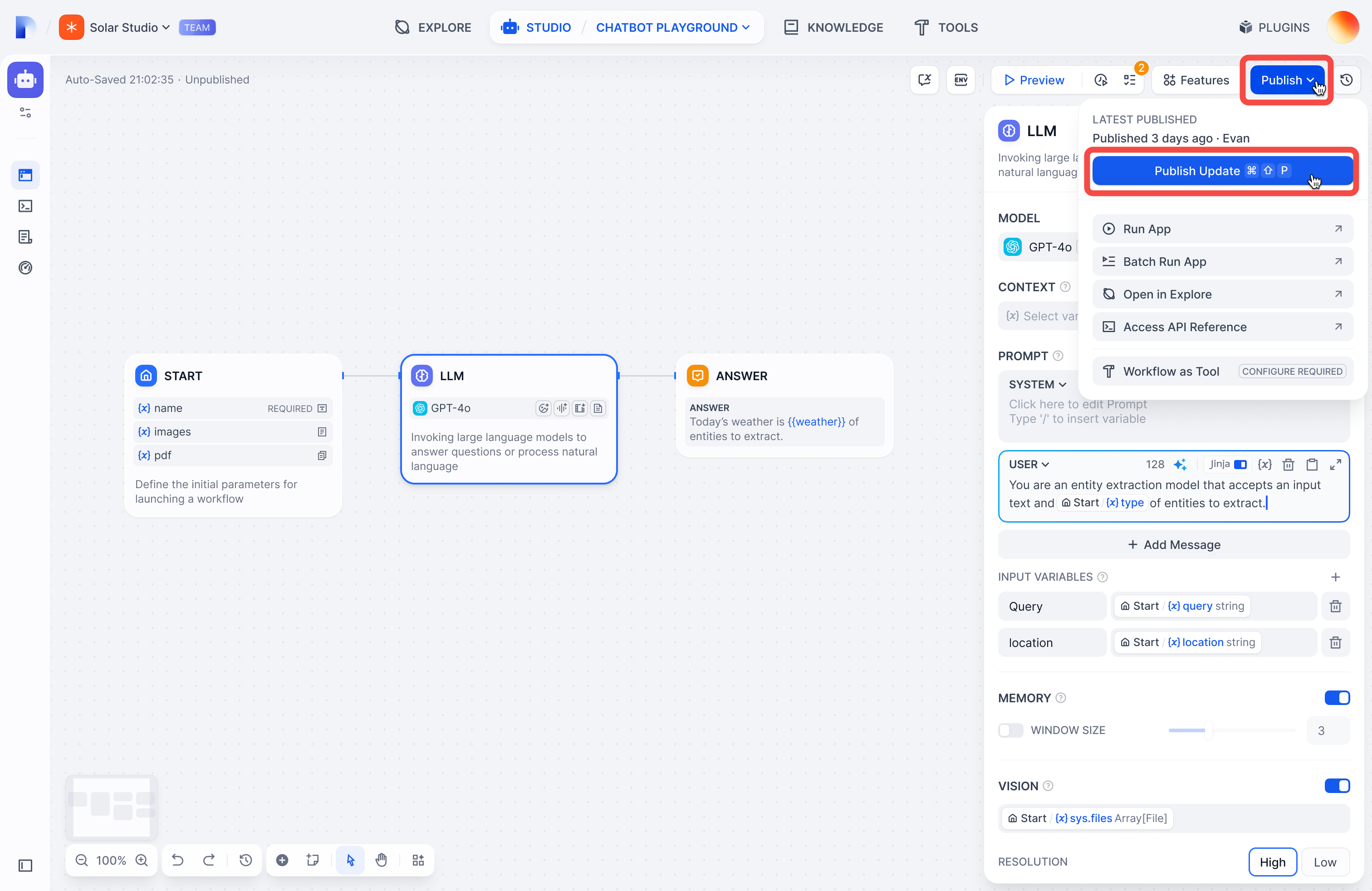
Your draft becomes the new Latest Version, and you get a fresh draft to work in.
View versions#
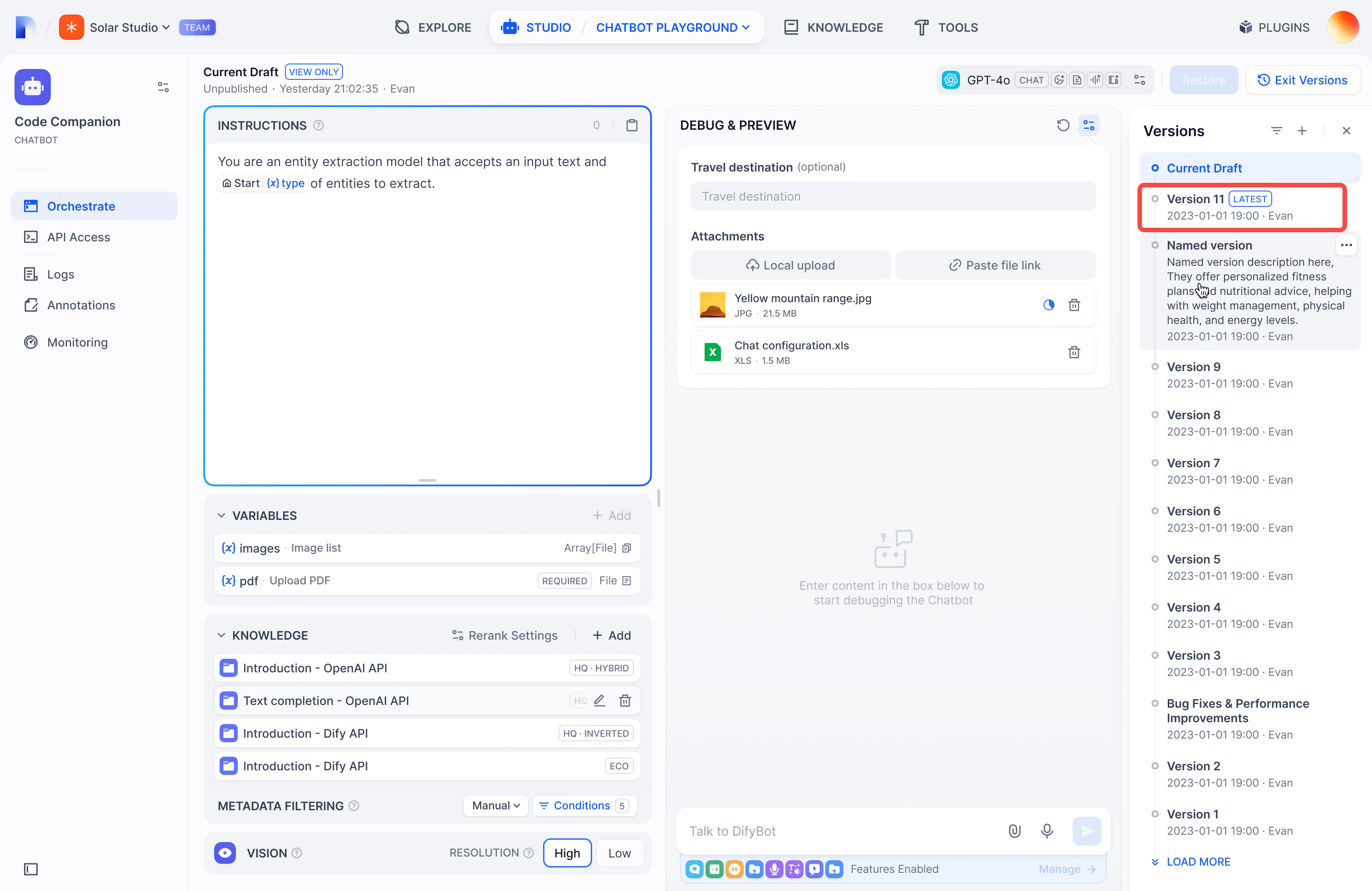
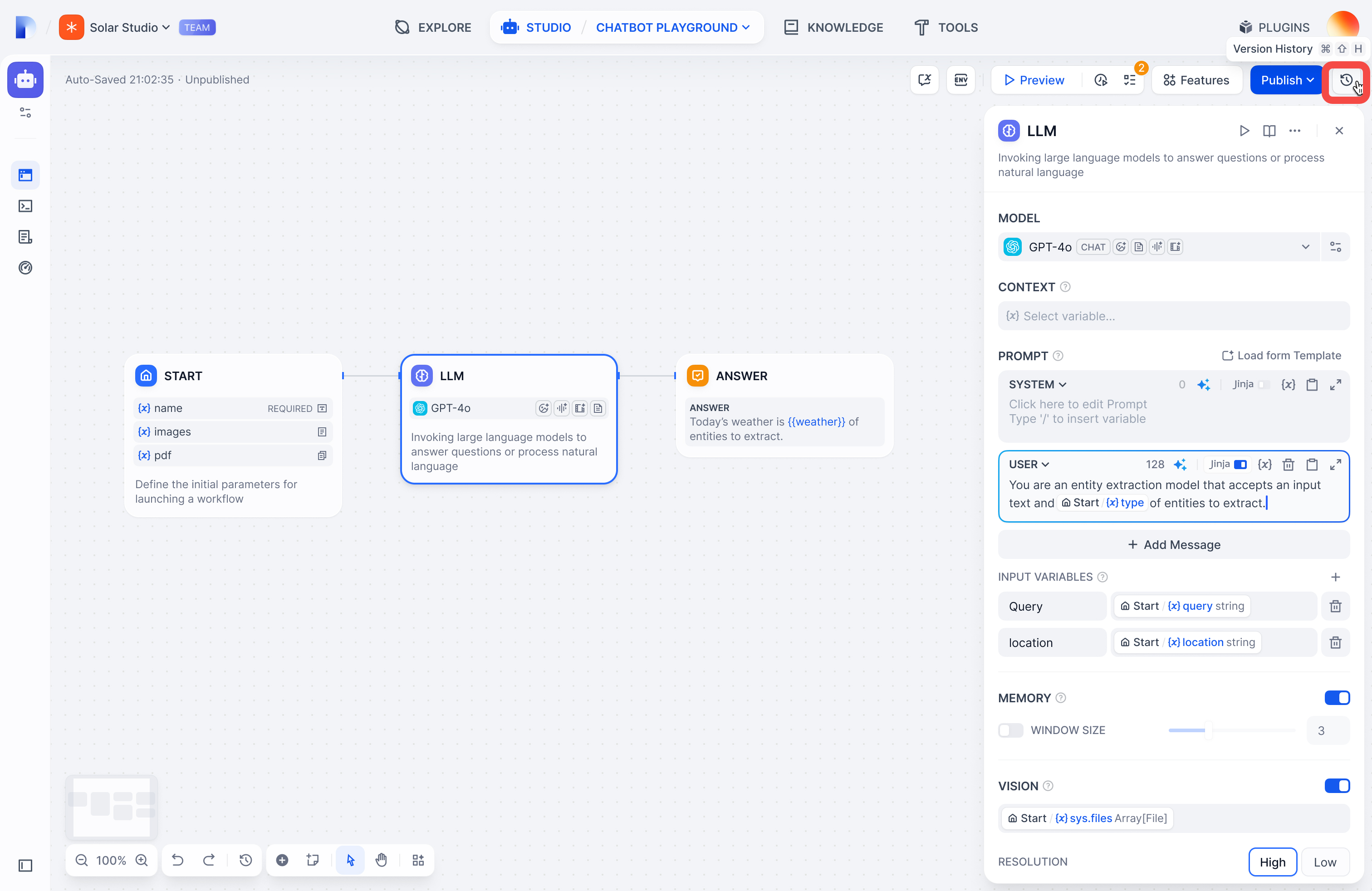
Click the history icon to see all versions:
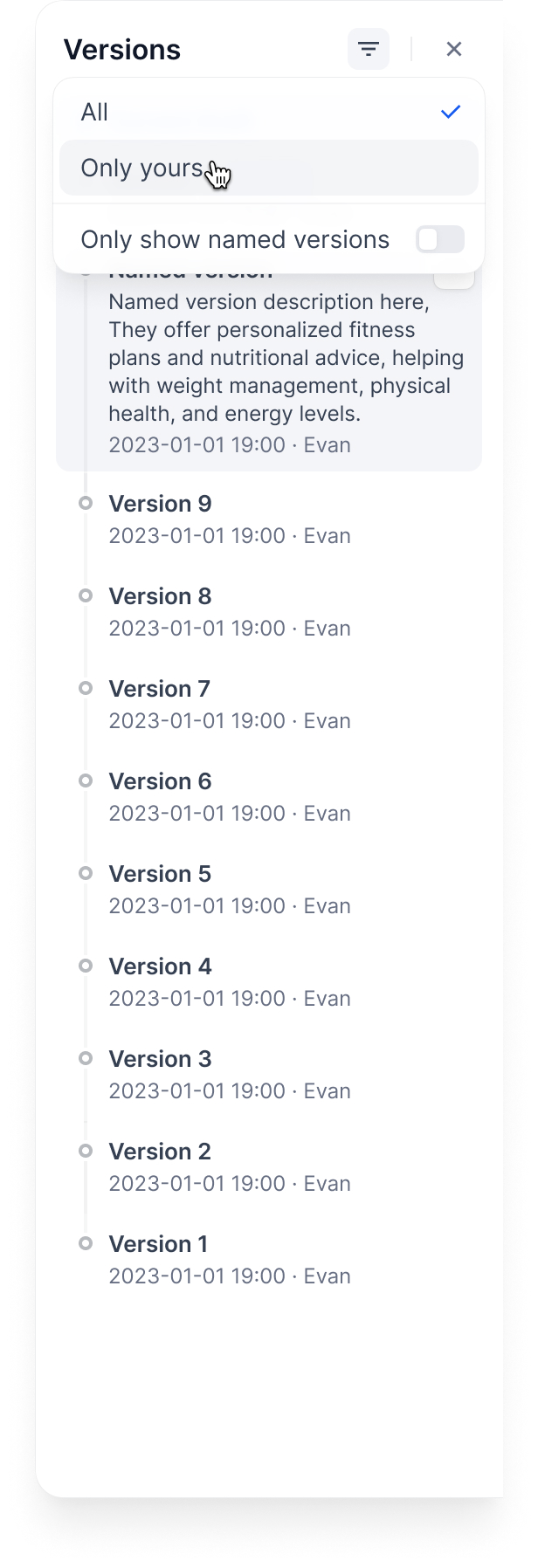
Filter by:
- All versions or only yours
- Only named versions (skip auto-generated names)
Manage versions#
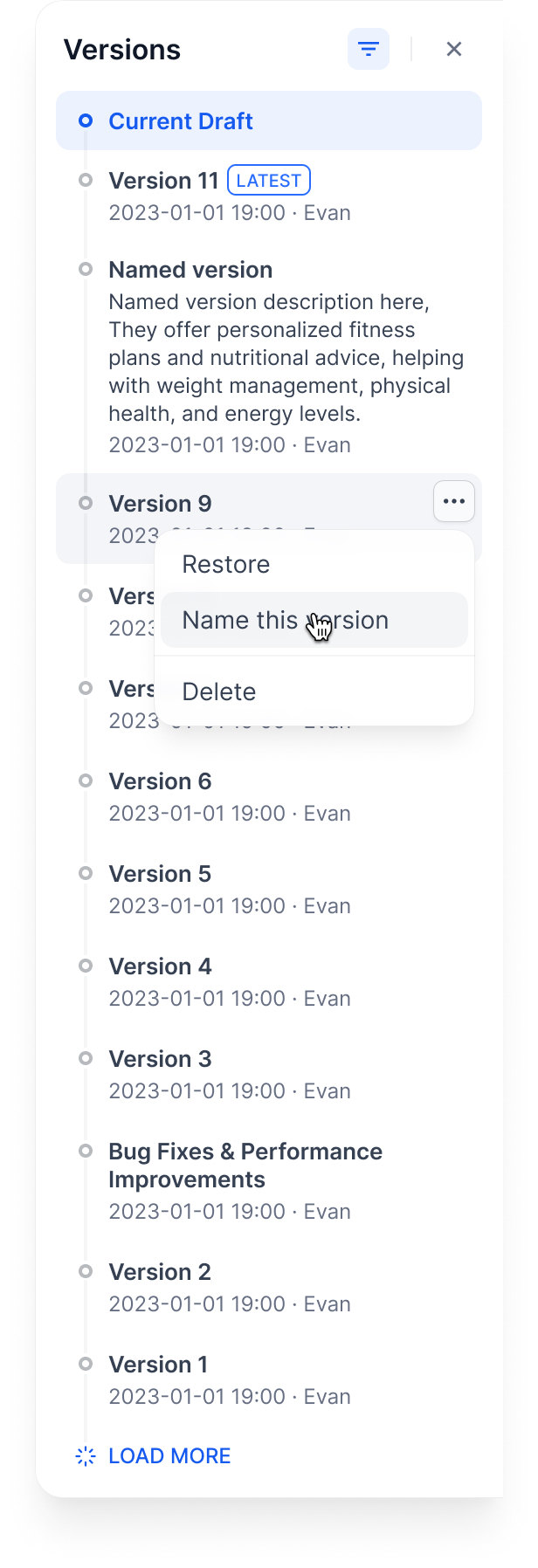
Name a version: Give it a proper name instead of the auto-generated one
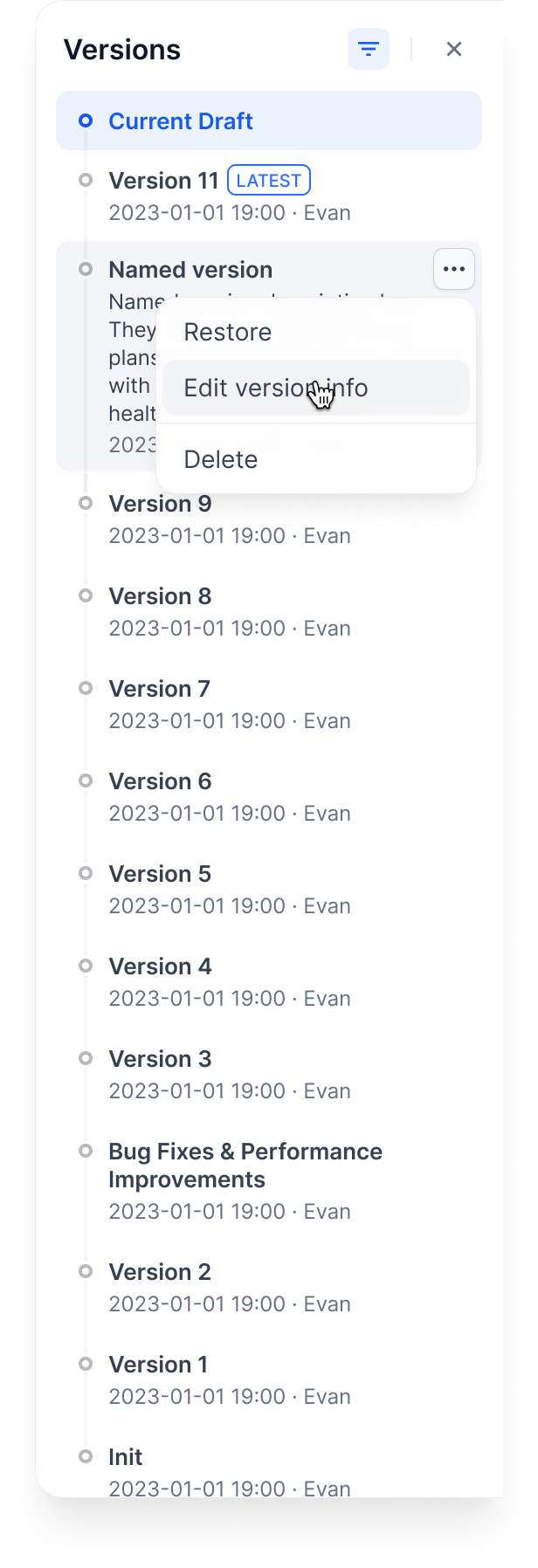
Edit version info: Change the name and add release notes
Delete old versions: Clean up versions you don’t need
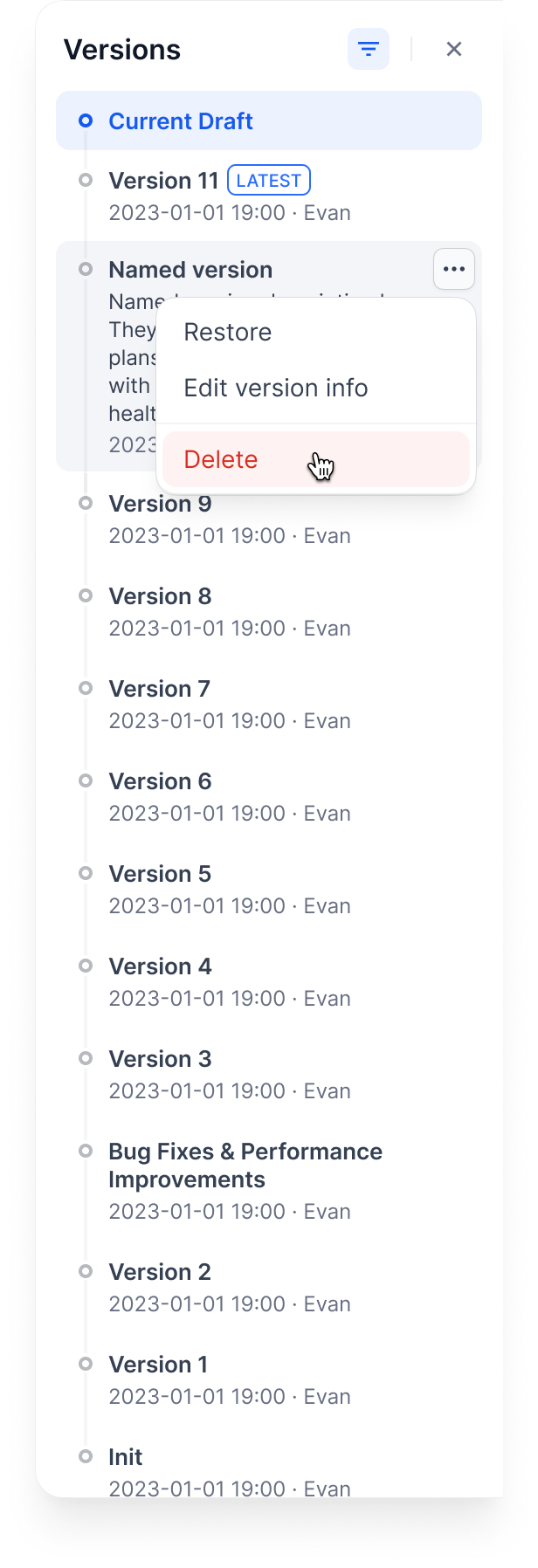
You can’t delete the Current Draft or Latest Version.
Restore a version: Load an old version back into your draft
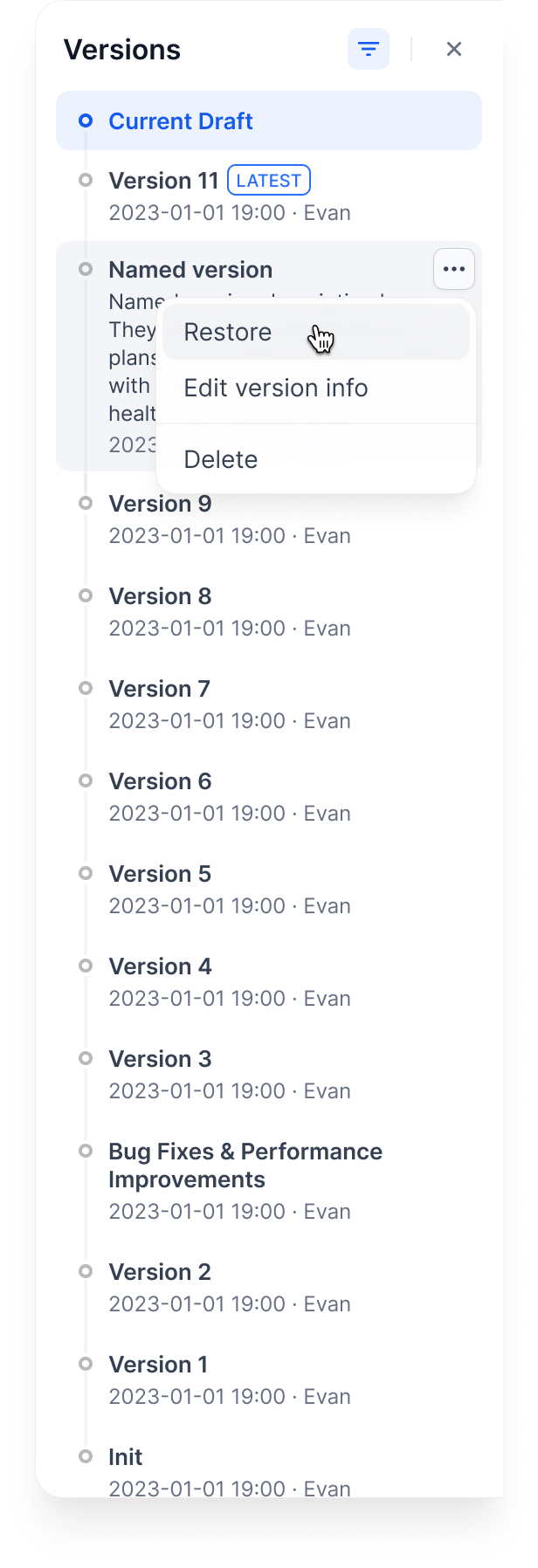
This replaces your current draft completely. Make sure you don’t have unsaved work.
Example workflow#
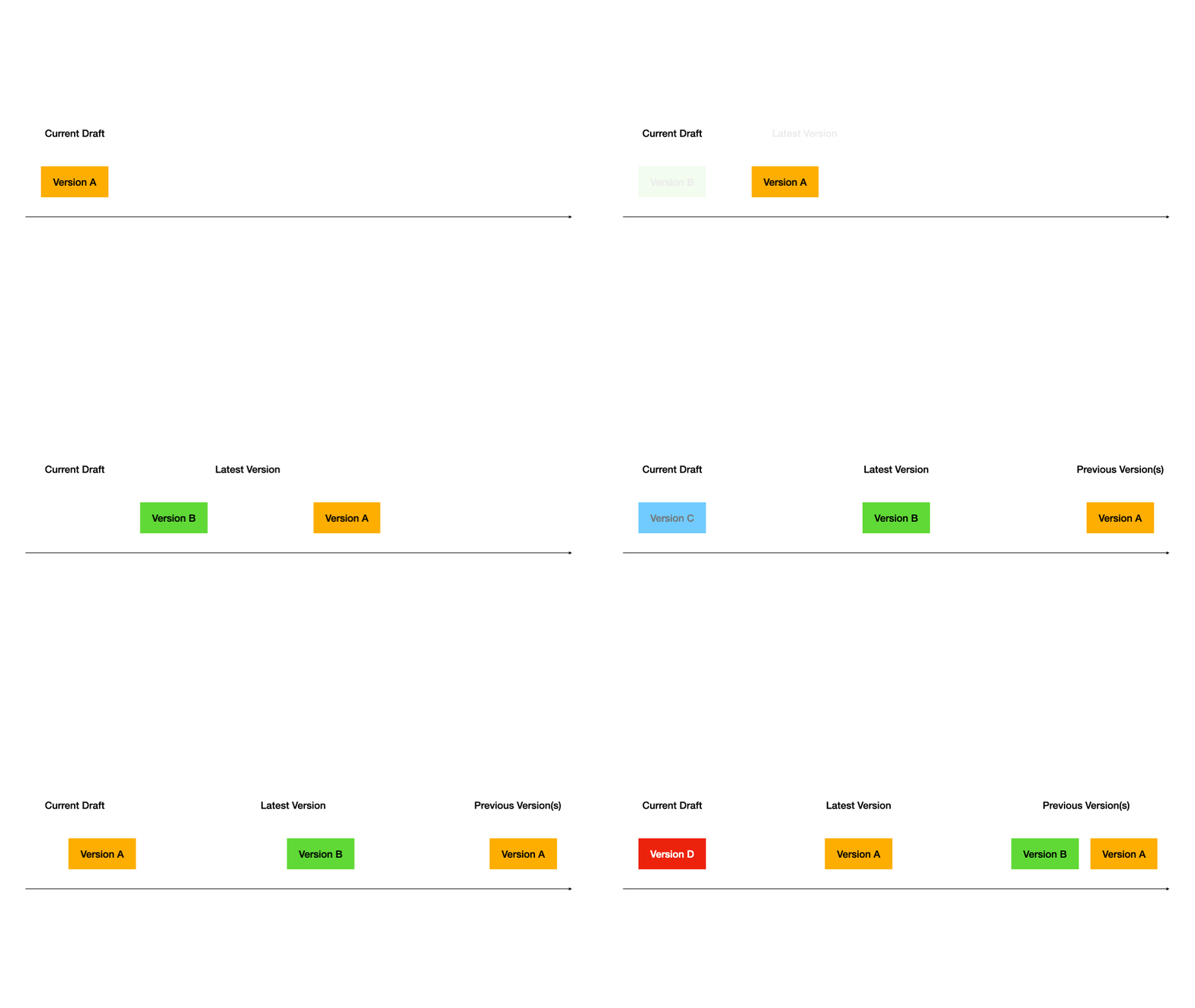
Here’s how versions work through a typical development cycle:
1. Start with a draft#
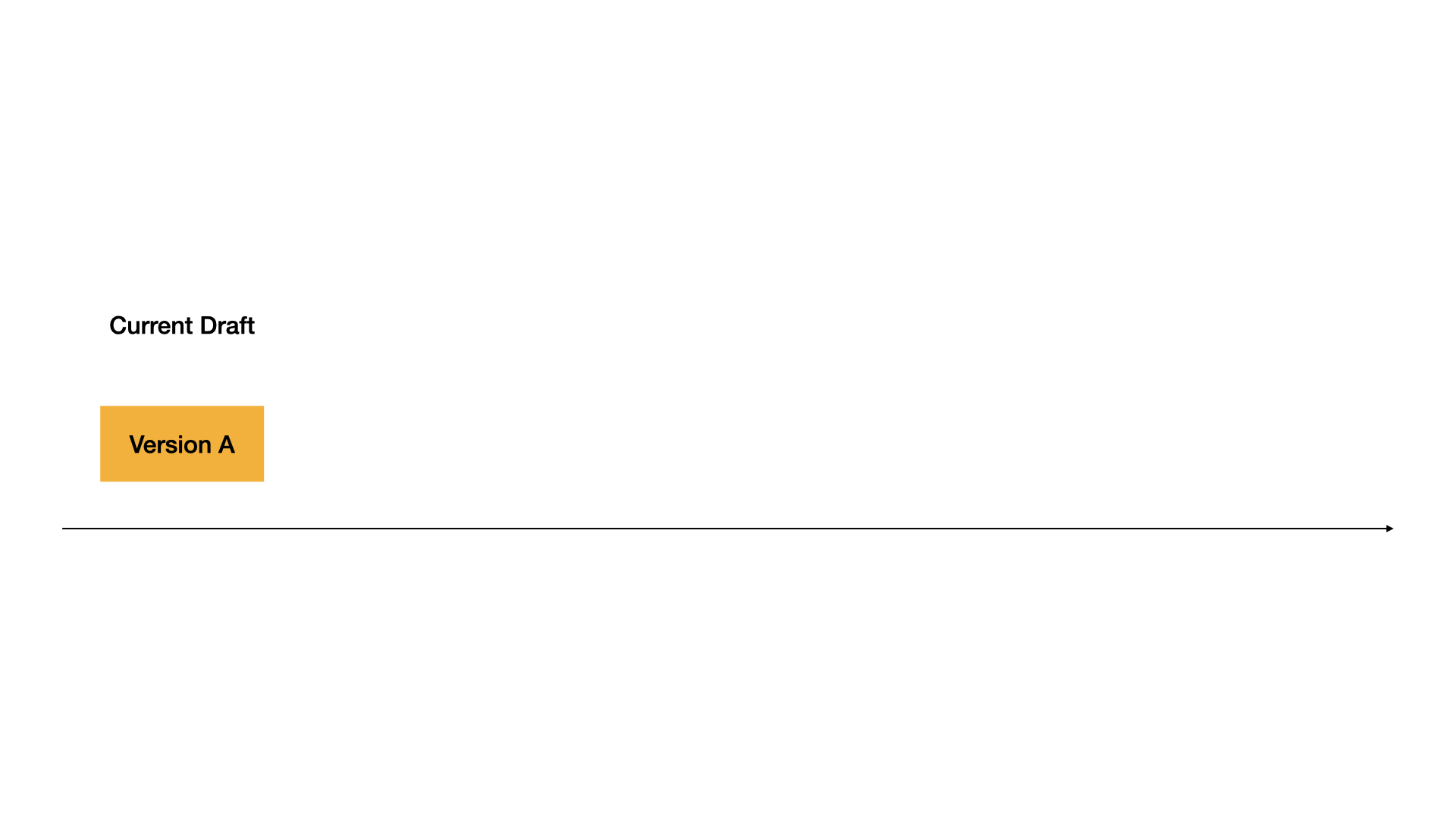
2. Publish first version#
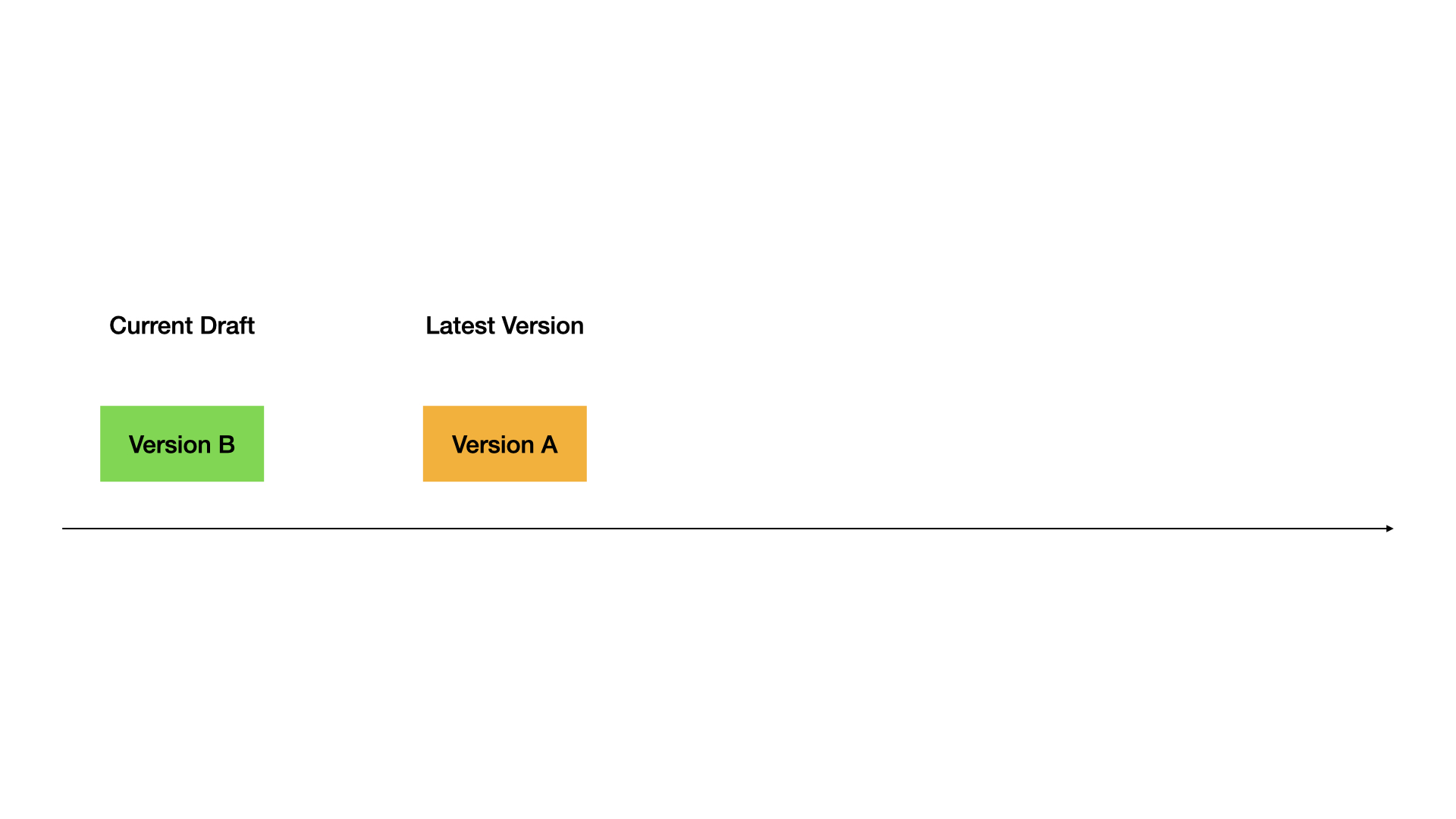
3. Publish second version#
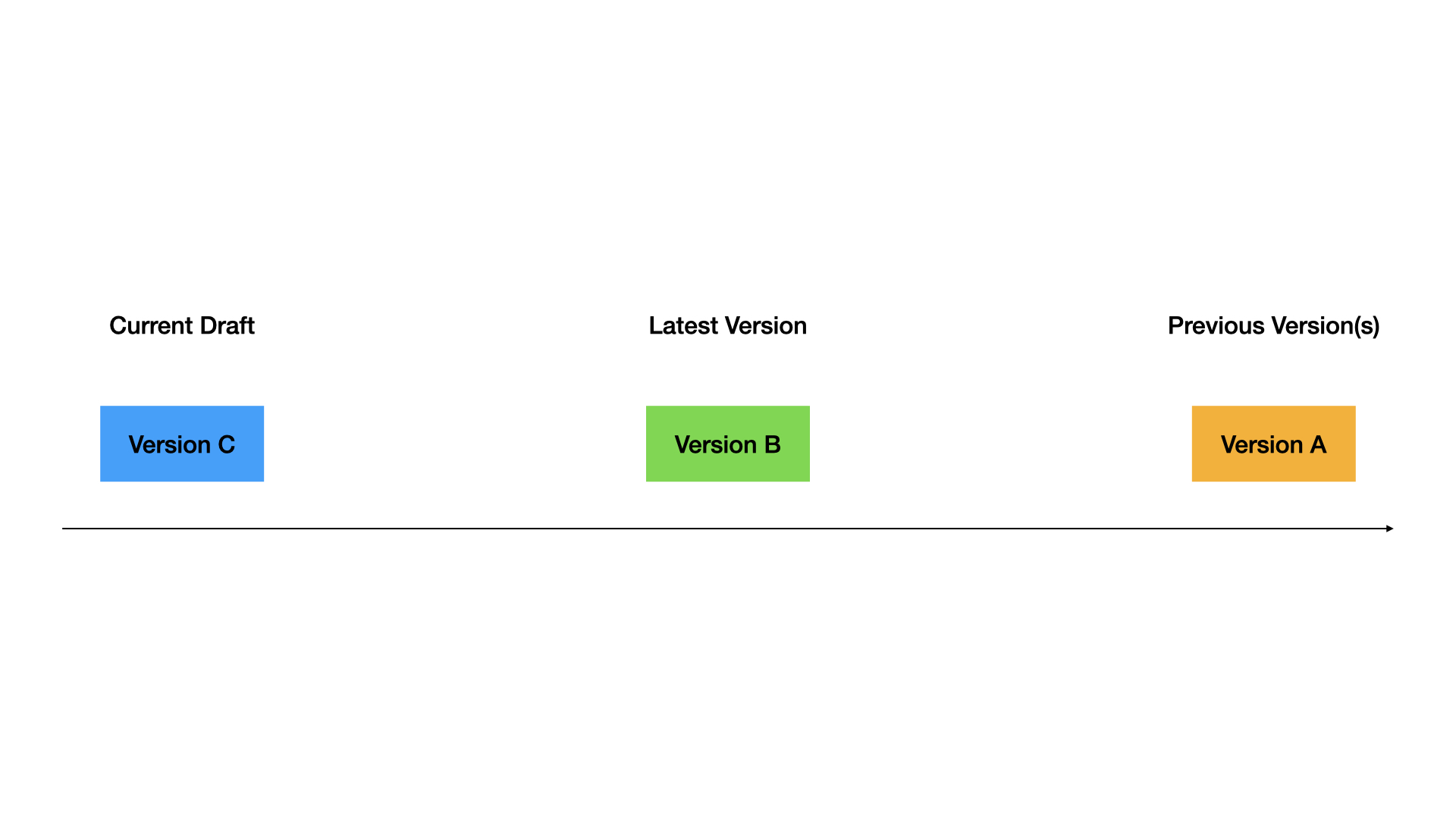
4. Restore old version to draft#
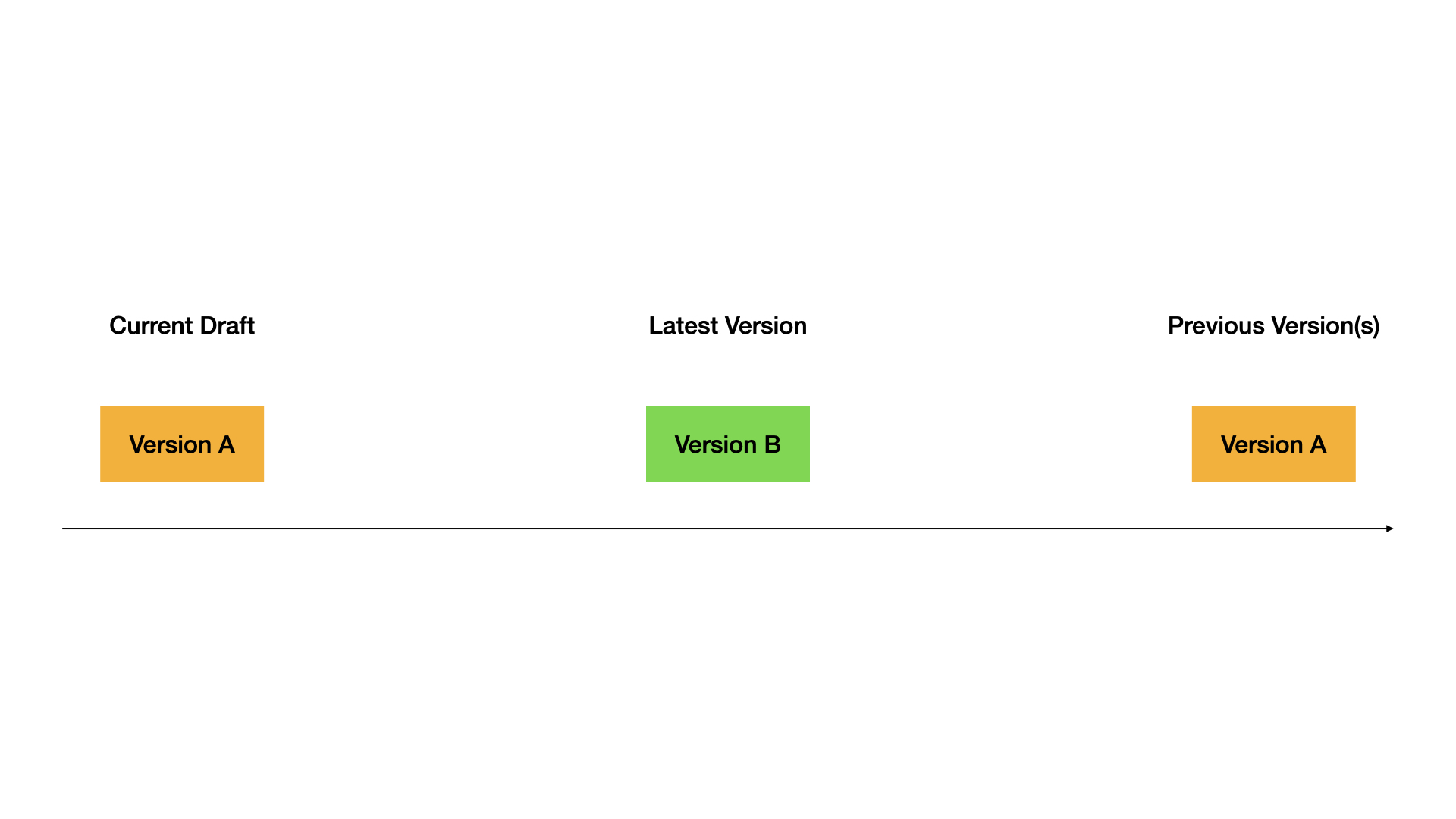
5. Publish the restored version#
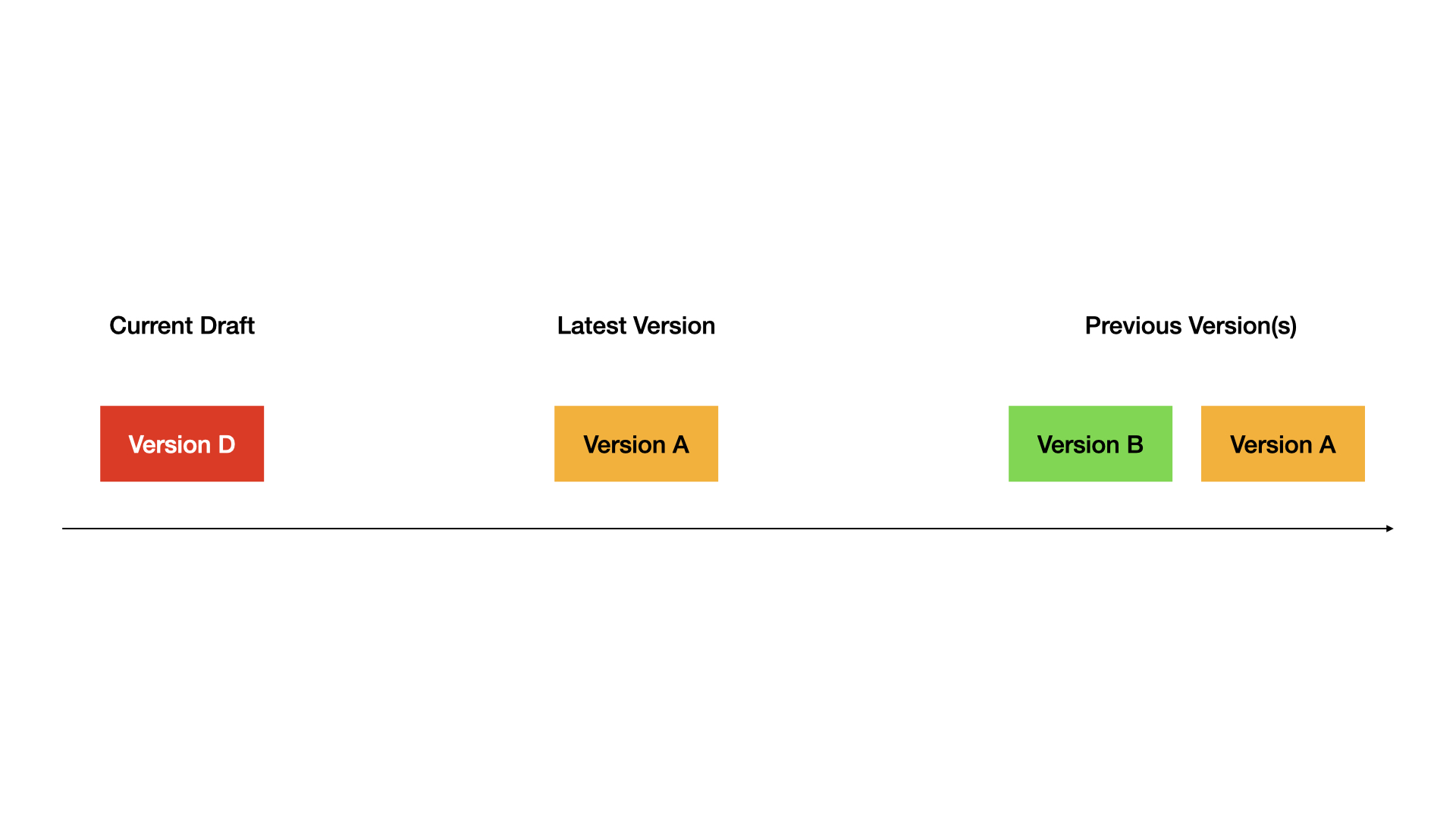
Complete demo:
Tips#
- Always test in draft before publishing
- Use descriptive version names for important releases
- Restore versions when you need to rollback quickly
- Keep old versions around for reference