

Building a workflow sometimes takes more than one person: a prompt engineer tuning instructions, a domain expert validating logic, a reviewer flagging edge cases.
Rather than taking turns, you can edit the same workflow alongside other workspace members and leave comments directly on the canvas, so the discussion stays with the work.
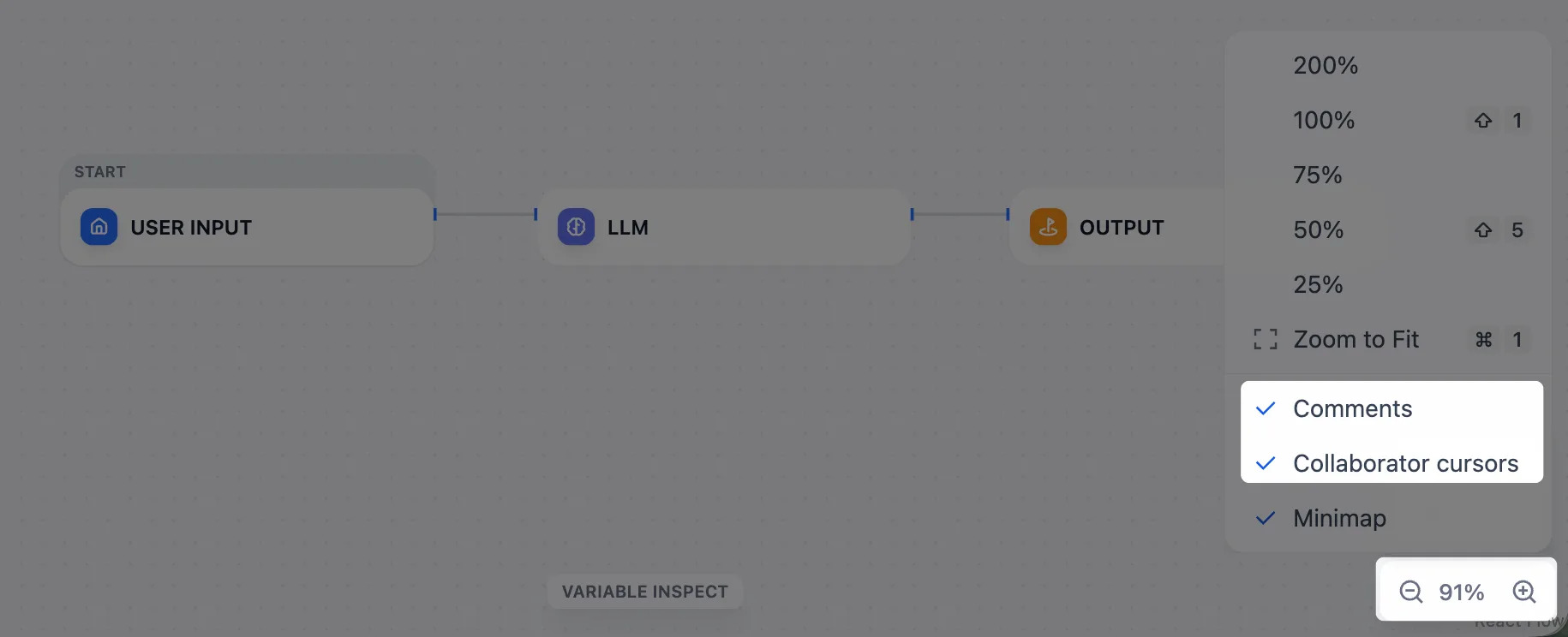
Comments and collaborator cursors can be hidden from the zoom menu in the bottom-right corner of the canvas.
Real-Time Editing#
Workspace members with editor permissions or above can edit the same workflow simultaneously. When two members change the same element at the same time, the last edit wins.
Comments#
Right-click an empty area of the canvas and select Add Comment to leave a note. To drop multiple comments in a row, press C to enter comment mode. Comments persist across workflow versions.
If you @mention a workspace member in a comment, they’ll receive an email notification.
Anyone with access to the app can read comments; adding, editing, or resolving requires editor permissions or above.
Deployment Requirements#
Collaboration runs over WebSocket, alongside the main API. The bundled Docker Compose stack ships this enabled, but production deployments behind a custom domain or reverse proxy need to confirm a few settings:
ENABLE_COLLABORATION_MODEistrue(the master switch for simultaneous editing, comments, and @mentions).SERVER_WORKER_CLASSisgeventwebsocket.gunicorn.workers.GeventWebSocketWorkeron the WebSocket worker (the bundledapi_websocketservice sets this).NEXT_PUBLIC_SOCKET_URLpoints to a WebSocket URL the browser can reach, for examplewss://dify.example.com. The defaultws://localhostonly works for local access to the bundled nginx.- The
collaborationprofile stays inCOMPOSE_PROFILESso the dedicated WebSocket service runs.
If you front Dify with your own reverse proxy, forward Upgrade and Connection headers on /socket.io/. Running multiple API replicas requires sticky sessions.
See Environment Variables for the full reference.