

The Human Input node pauses workflows at key points to deliver a customizable request form. Recipients can use the form to review information, provide input, and choose from predefined decisions that determine how the workflow proceeds.
By embedding human judgement directly where it matters, you can balance automated efficiency with human oversight.
For a workflow design example, see Example: Content Review Workflow.
Configuration#
Configure the following to define how the node requests and processes human input:
-
Delivery method: How the request form reaches recipients.
-
Form content: What information recipients will see and what they can interact with.
-
User action: What decisions recipients can make and how the workflow proceeds accordingly.
-
Timeout strategy: How long to wait and what happens if no recipient responds.
Delivery Method#
Choose the channel through which the request is delivered. Currently available methods:
-
Web app: Displays the request form to the web app end user. Not available in workflows started by a Trigger.
InfoExternal clients can drive the web app form lifecycle through the Service API. See API Integration Flow.
-
Email: Sends a request link via email to specific workspace members, external email addresses, or every member of the workspace. Anyone with the link can respond, no Dify account required.
The request closes after the first response regardless of delivery method.
Form Content#
Customize the form recipients see and interact with:
-
Format and structure with Markdown
Use headings, lists, bold text, links, and other Markdown elements to present information clearly.
-
Display dynamic data with variables
Reference workflow variables to show dynamic content, such as AI-generated text for review or a file someone uploaded at an upstream Human Input node for approval.
In web app delivery, the form itself displays to end users. Any variables you reference render their values directly in the form, so no Answer or Output node is needed before the Human Input node.
TipReasoning models emit their thinking process alongside the final answer. Referencing the
textoutput variable shows both by default.To show only the answer, toggle on Enable Reasoning Tag Separation for the corresponding LLM node.
-
Collect input with form fields
Add fields into the request form to capture different types of input from recipients. Each field becomes a variable for downstream use.
For example, in a blog review workflow, you can pass recipient feedback to a downstream LLM node for content revision.
Field Type Description Paragraph Text input. Can start empty, or pre-filled with variables (e.g., LLM output to refine) or static text (examples or default values).
No maximum length, but very long inputs may exceed downstream LLM context windows.Select Single-choice selection from a list of options. Define options manually, or reference an array[string]variable to use its items as options.Single File / File List Single or multiple file uploads. InfoFile upload limits are tunable via environment variables:UPLOAD_FILE_SIZE_LIMIT,UPLOAD_IMAGE_FILE_SIZE_LIMIT,UPLOAD_VIDEO_FILE_SIZE_LIMIT, andUPLOAD_AUDIO_FILE_SIZE_LIMITcap per-file size by extension.WORKFLOW_FILE_UPLOAD_LIMITcaps the max files a File List field can be configured to accept.
NoteOnly Paragraph is optional; Select, Single File, and File List are mandatory. The form’s action buttons stay disabled until all mandatory fields are filled.
After the recipient responds, the form content with all values filled in is available downstream as the __rendered_content variable. File field values render as plain-text placeholders: [file] for Single File and [N files] for File List.
User Action#
Define the decision buttons that recipients can click, each routing the workflow to a different execution path.
For example, a Post branch might lead to nodes that trigger content publishing, while a Regenerate branch might loop back to an LLM node to revise the content.
Each button has a display title and an action ID. When a button is clicked, its ID is exposed downstream as __action_id and its title (button text) as __action_value.

Use preset button styles to visually distinguish actions.
For example, use a prominent style for key actions like Approve and a subtler one for secondary options.
Timeout Strategy#
Configure how long the request stays open before it expires. The default is 3 days.
If no recipient responds before the timeout, the workflow follows the timeout branch from the node. Wire this branch to a fallback path, such as a notification or a retry loop.
If no timeout branch is connected, the workflow ends.
Example: Content Review Workflow#
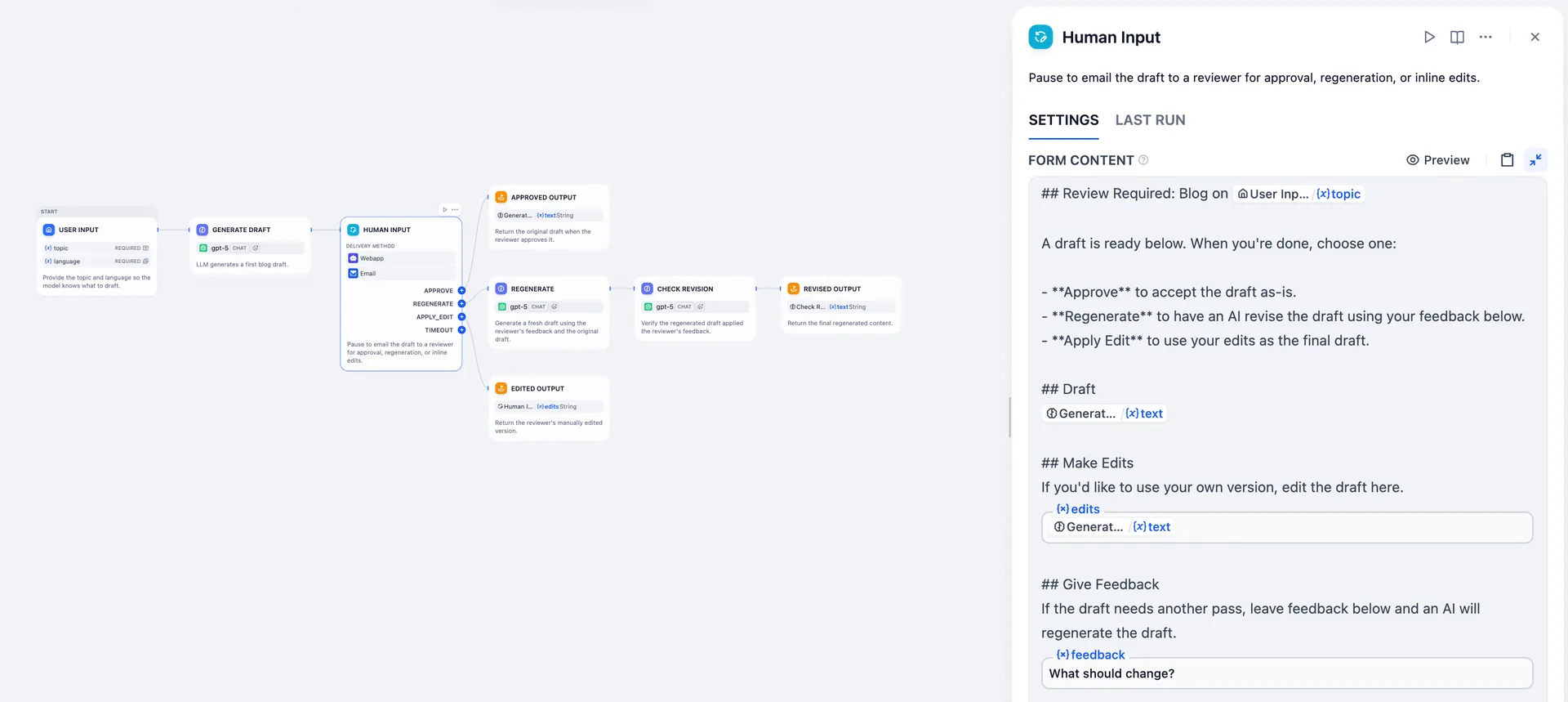
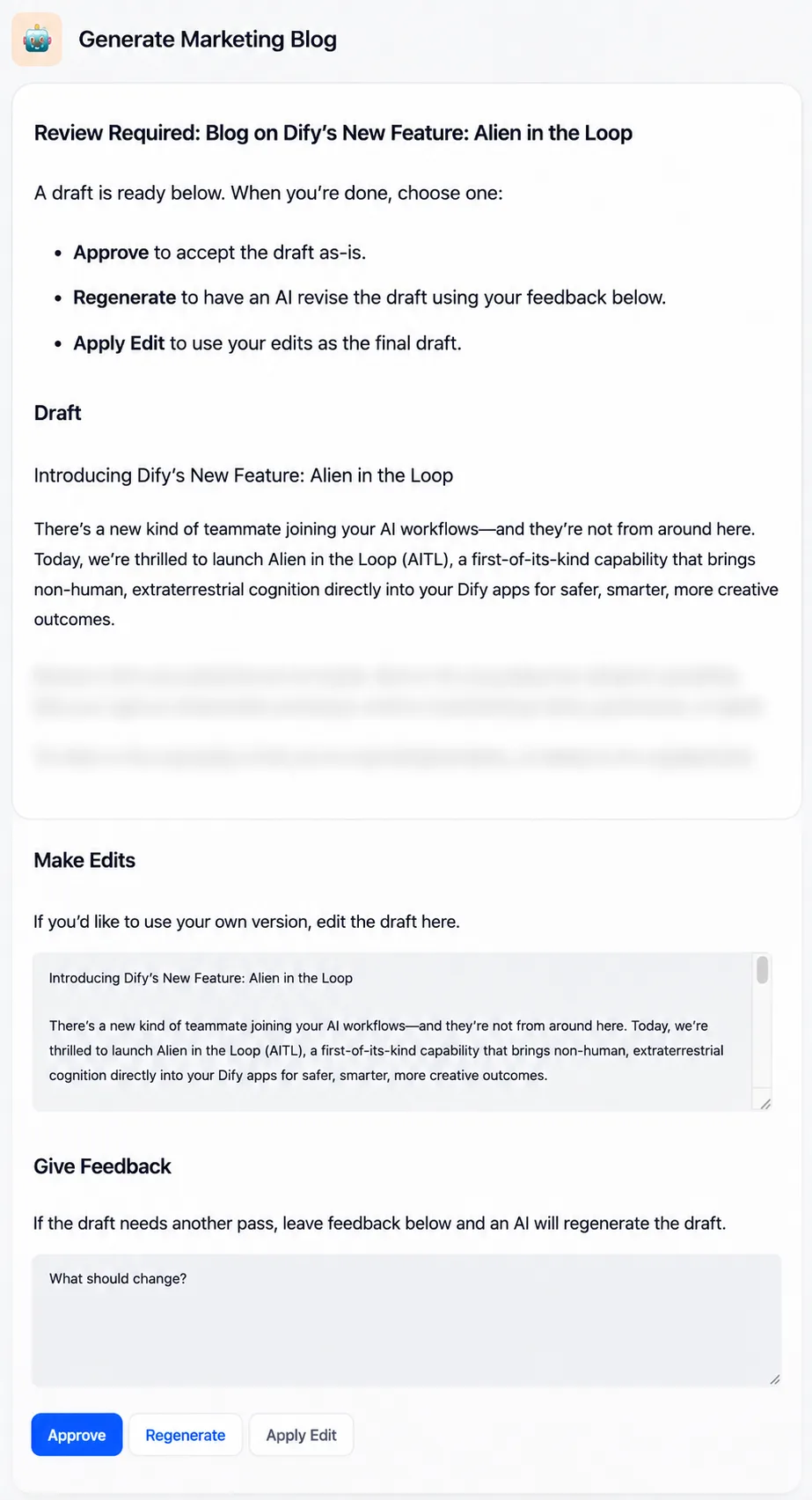
This workflow drafts a blog post from the topic and language that a workflow initiator inputs, emails the draft to a reviewer, and finalizes the output based on the reviewer’s choice.
It is designed around three things the reviewer should be able to do:
-
See the AI-generated draft: Reference the upstream LLM node’s
textvariable in the form so the rendered form displays the draft directly. -
Edit the draft directly if needed: Add a Paragraph field named
editsin the form, pre-filled with the sametextvariable, so the reviewer sees the draft as starting content and can edit in place.Because blog posts are long, the form’s Markdown display (point 1) reads better than a Paragraph field on its own. For shorter content, the pre-filled Paragraph field alone can handle both reading and editing.
-
Provide feedback for an AI revision:
- Add a Paragraph field named
feedbackin the form for the reviewer’s feedback. - Connect two downstream LLM nodes in sequence:
- A Regenerate node that takes the original draft
textand the reviewer’sfeedbackto produce a revised draft. - A Check Revision node that takes
feedbackand the revised draft to verify whether the revision addresses the feedback. The verified result is what flows downstream.
- A Regenerate node that takes the original draft
- Add a Paragraph field named
On the received request form, the reviewer fills the relevant Paragraph fields (or leaves them blank) based on their judgment, then clicks the matching action button. Each action wires to a different output:
- Approve: the original draft from the upstream LLM
- Apply Edit: the reviewer’s edited content from the
editsfield - Regenerate: the revised draft from the downstream LLM pipeline
LLM Node Prompts for Reference
System
User
System
User
System
User